Exchange Calendar Backend: Migration from EWS to Graph
Overview
For ADITO 2026.1, the Exchange calendar integration should be migrated from the legacy EWS-based backend to the Graph-based backend. This migration involves alias configuration changes, authentication provider updates for permission synchronization, updates to the autostart process, and module imports in the customizing project.
Microsoft will disable EWS on October 1st, 2026. Consequently, this migration is not strictly tied to ADITO version 2026.1; ADITO 2026.0 already includes all features of the Graph backend. Additionally, you can extend the usage of EWS through your Azure settings.
Refer to the official Microsoft announcement for more details.
Importance
Microsoft will block access to the EWS API starting October 1st, 2026. The Graph backend replaces the legacy EWS-based backend and has been feature-complete since ADITO version 2026.0.
Maintaining the EWS configuration after this date will lead to calendar synchronization failures. The migration ensures that calendar and permission synchronization logic use the supported Microsoft Graph implementation.
Free/Busy Results and UID Handling
The Graph backend does not include UID information in free/busy bulk queries
such as getEntries() and getExpandedEntries(). This reduces remote calls
and improves performance compared to loading full event objects only to enrich
free/busy data.
If existing customizing reads UIDs from free/busy results, adjust that logic as part of the migration. Use single-entry lookups only when a concrete UID is already known.
Alias definition types
MS-Exchange (Webservice)is the name of the alias definition type for the legacy EWS-based backend.MS-Exchange (Graph)is the name of the alias definition type for the new Graph-based backend.
Recommended actions
- Create a new alias of type
MS-Exchange (Graph)and set it as the active calendar backend alias. - Create a new
AuthenticationProvideralias for permission synchronization and configure it for Microsoft Graph access. - Import the required Graph modules into your customizing project, ensuring the versions match your dependency management.
- Update the
autostartprocess to reflect the changes in default permissions within the new permission synchronization process (specifically inPermissionsCalendar_lib). - Optional: Once the migration has been successfully completed, you can remove the
MS-Exchange (Webservice)alias configuration and delete its definition.
Server Process for Permission Synchronization
As mentioned above, a server process can be used to synchronize permissions in ADITO with those in Azure / Exchange. To enable this, several changes are required.
Customizing Module Dependencies
First, add the required modules to your customizing project's dependencies:
@aditosoftware/microsoft-graph-api
@aditosoftware/microsoft-graph-permissionsync
Configuration
There is a new custom property microsoftGraph.permissionSync.domainName in the project preferences that can be used to
specify a domain filter. The synchronization is executed for all users in that domain. If the property value is not set,
no filtering is performed.
Technical details: The calendarId of all users is checked against the domain filter. Users who do not match are skipped.
This prevents unnecessary requests to the Graph API and reduces the overall duration of the synchronization process.
The synchronization steps in detail
Prerequisites
Permissions must already be defined for users in Outlook.
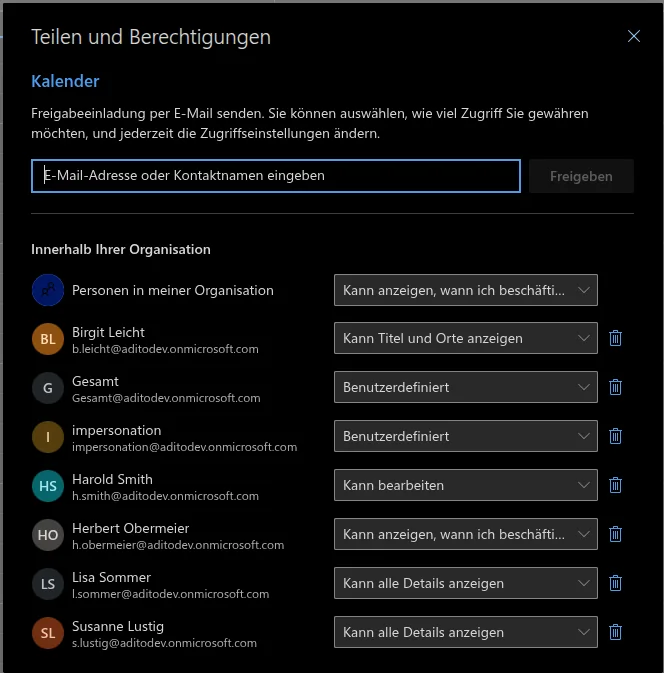
Step 1
Initially (for new systems), the database permissions are empty. If you are upgrading, existing permissions will be visible. This applies to both manually defined permissions and previously synchronized ones.
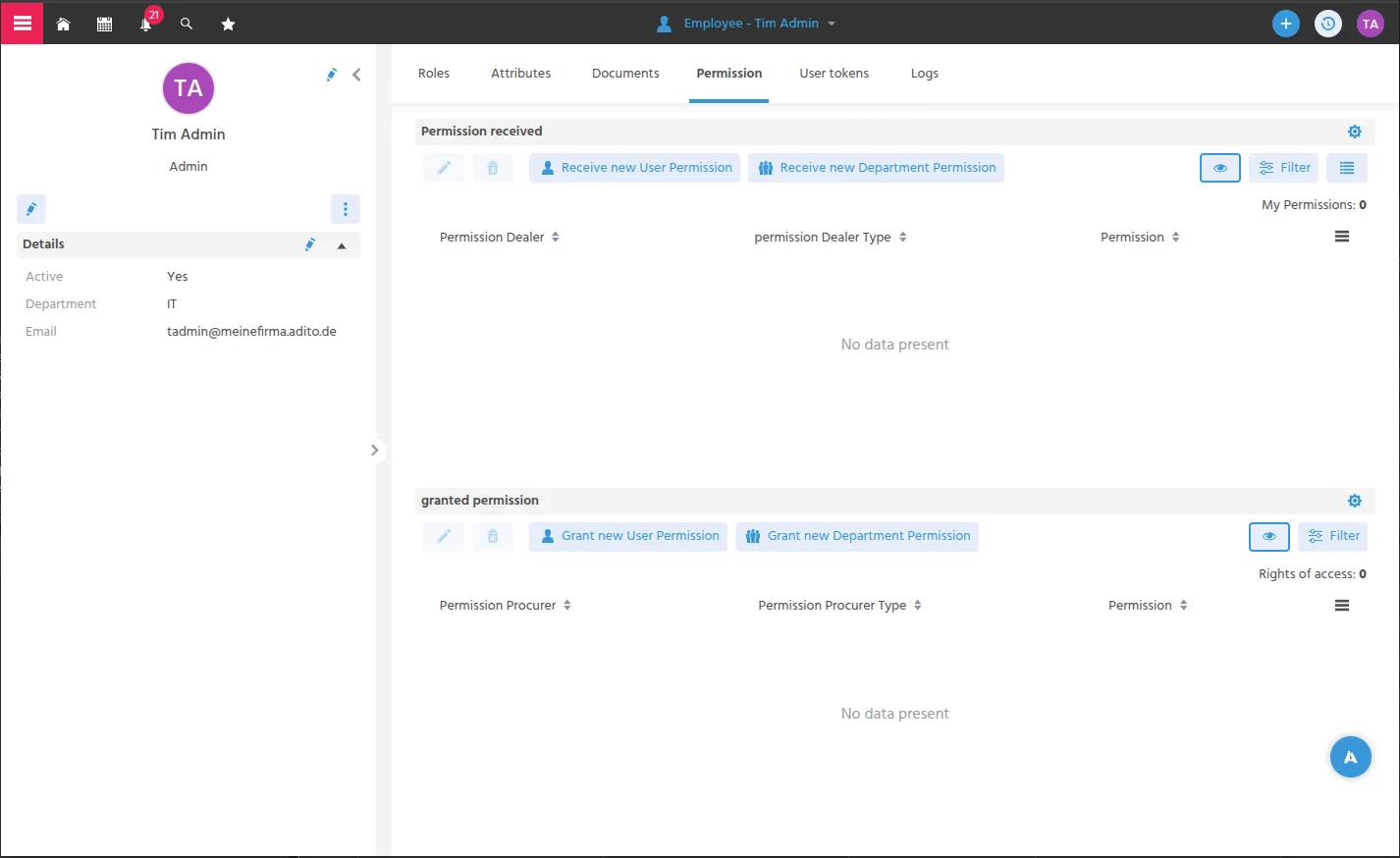
Step 2
In the manager section, you can manually trigger the permission synchronization process.
The process is named Synchronize calendar permissions from Exchange (Graph) to ADITO,
with the technical title graphSyncCalendarPermissions_serverProcess.
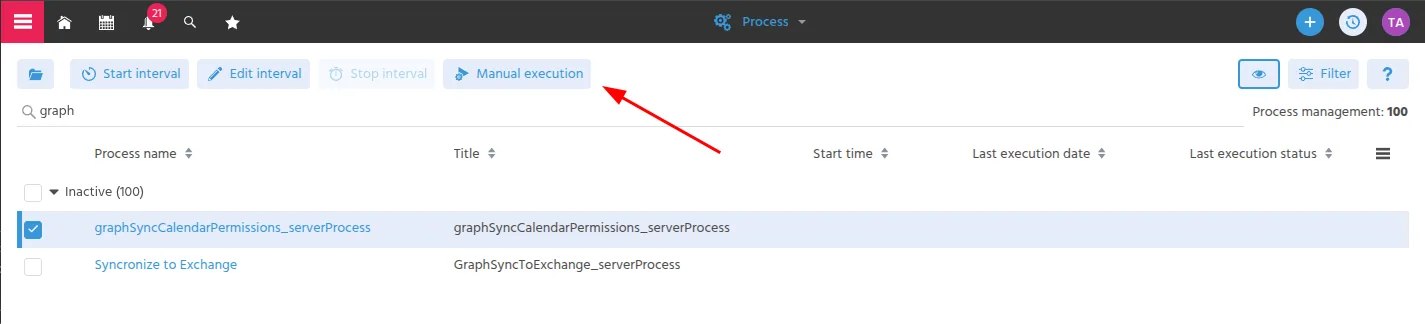
Step 3
Select the server that should run the process. This is typically a background server.
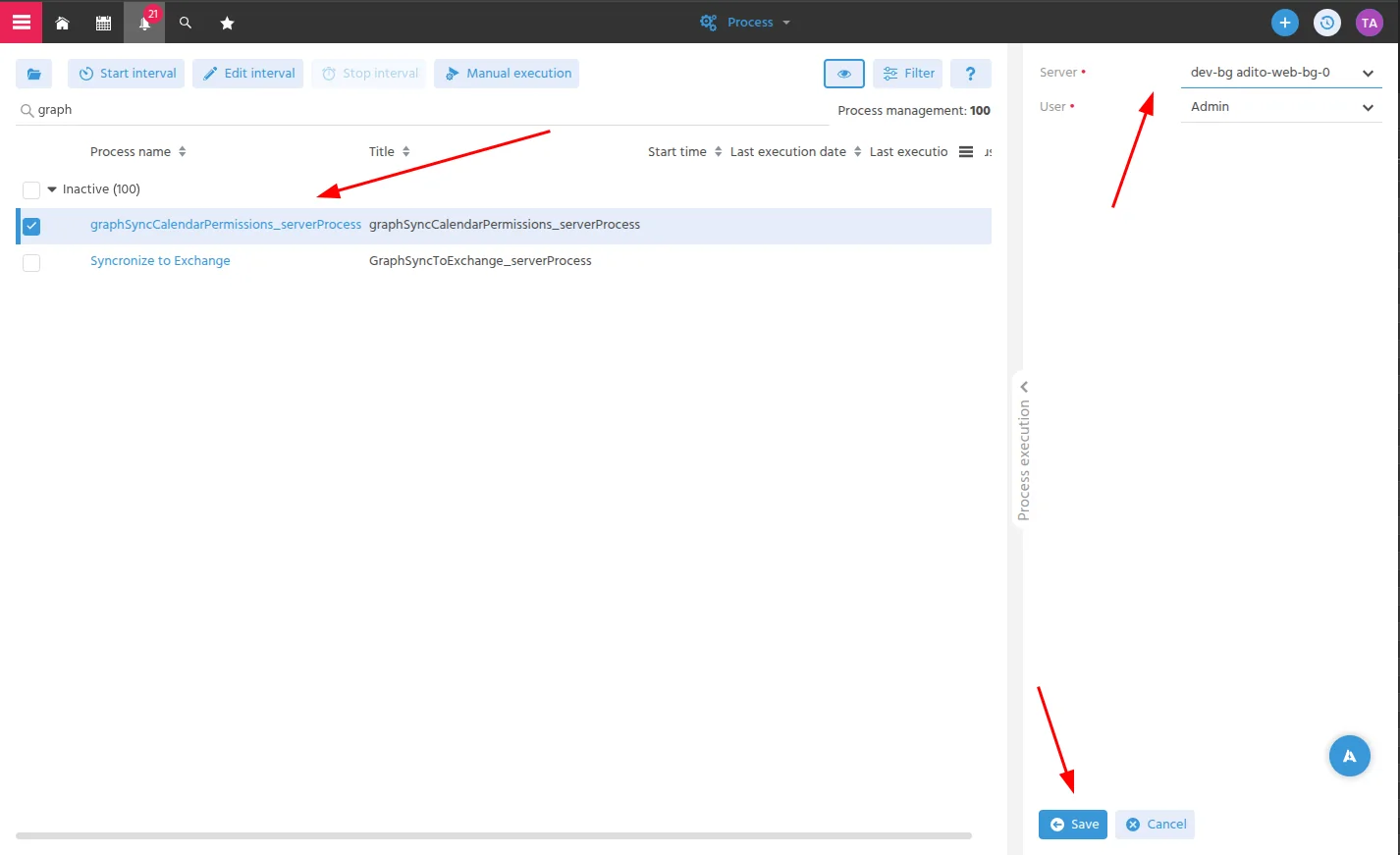
Step 4
Depending on the number of users, this process may take some time. It runs in the background, and progress can be monitored in the log. Once completed, check the process history for the results.

Step 5
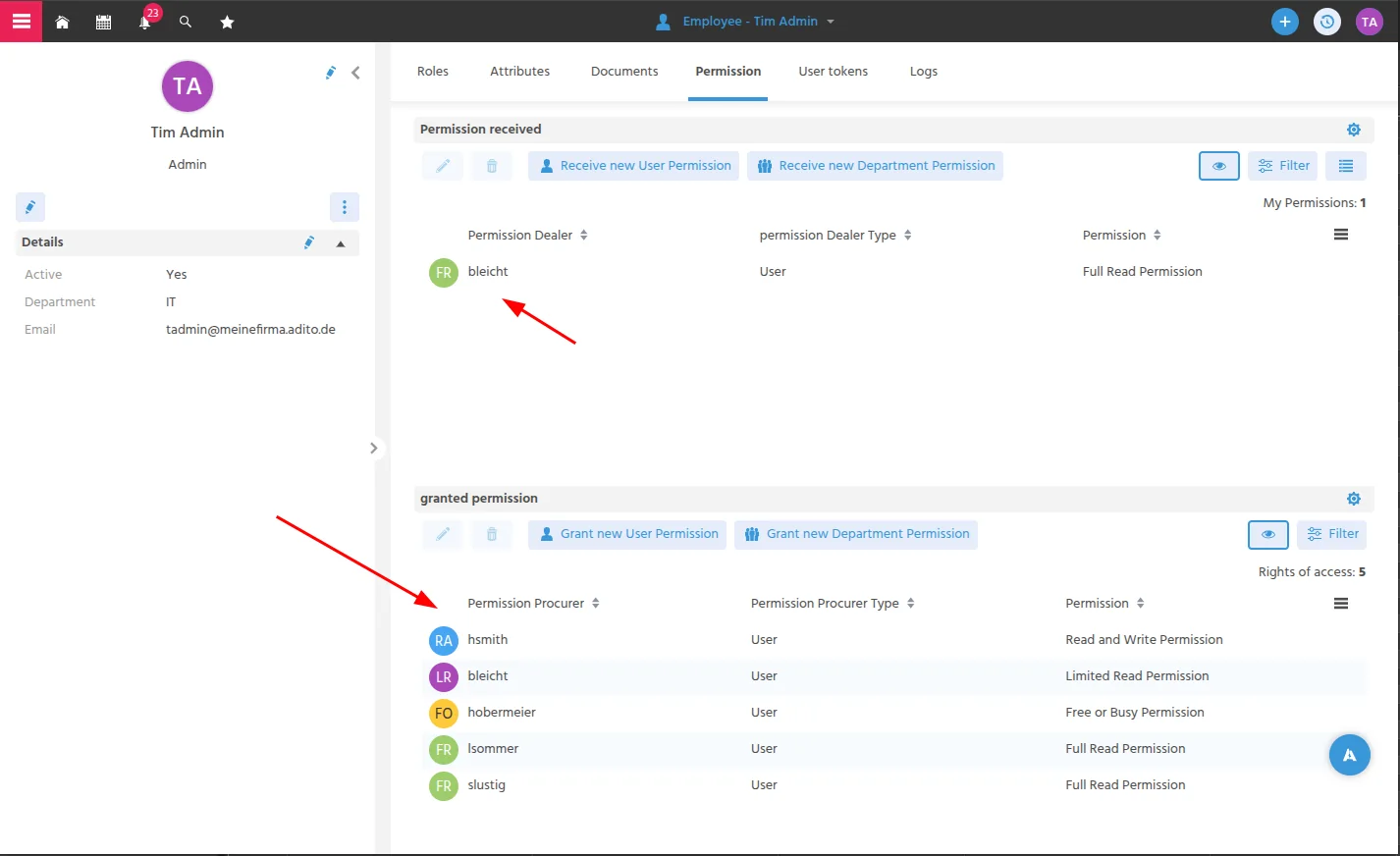
Checking the permissions in the employee context will show that they are now synchronized.
In this example, the user admin has received permissions for the user bleicht.
Step 6
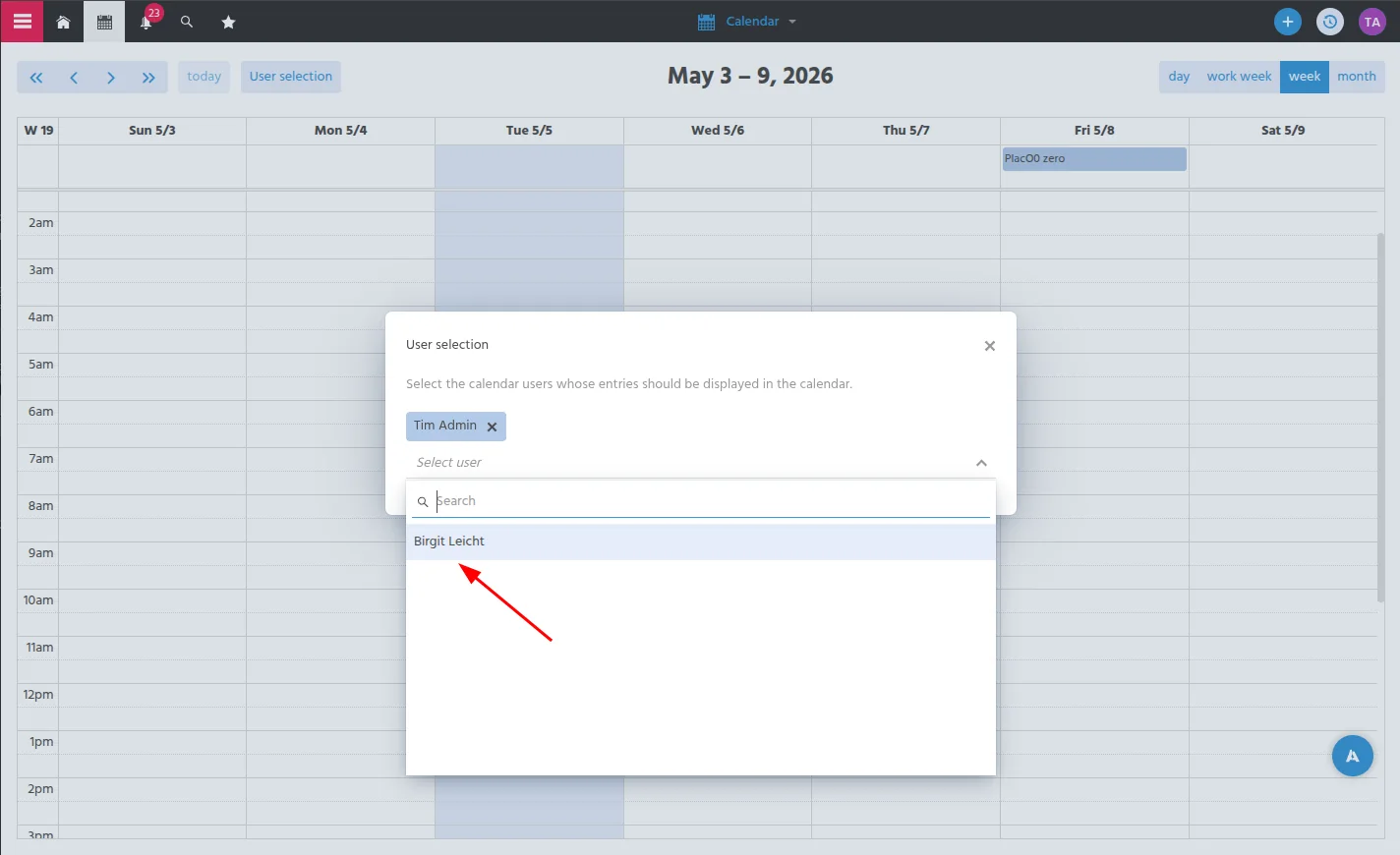
First, logout and login again and go to the calendar.
The user admin can now select the user bleicht in the calendar context
to view their events.
Changes to autostart / PermissionCalendar_lib
Overwrite the getPermissions method in the PermissionsCalendar_lib module as follows:
PermissionCalendar.getPermissions = function(pCurrentUser)
{
   // Select all users with permissions who have the current user as procurer-id
   var sql = new SqlBuilder(PermissionCalendar.getAlias())
           .select("AB_PERMISSIONCALENDARID, PERMISSIONDEALER_ROWID, PERMISSIONDEALER_TYPE, PERMISSIONPROCURER_ROWID, PERMISSION")
           .from("AB_PERMISSIONCALENDAR")
           .where("AB_PERMISSIONCALENDAR.PERMISSIONPROCURER_ROWID", pCurrentUser)
           .orIfSet("AB_PERMISSIONCALENDAR.PERMISSIONPROCURER_ROWID", PermissionCalendar.getAllParents(UserUtils.prefixUserId(pCurrentUser)), SqlBuilder.IN())

   // Select all users with permissions who have "DEFAULT" as the procurer, but where the dealer is not the current user
   var sql2 = new SqlBuilder(PermissionCalendar.getAlias())
           .select("AB_PERMISSIONCALENDARID, PERMISSIONDEALER_ROWID, PERMISSIONDEALER_TYPE, PERMISSIONPROCURER_ROWID, PERMISSION")
           .from("AB_PERMISSIONCALENDAR")
           .where("AB_PERMISSIONCALENDAR.PERMISSIONPROCURER_ROWID = 'DEFAULT'")
           .and("PERMISSIONDEALER_ROWID not in (" + new SqlBuilder(PermissionCalendar.getAlias())
                   .select("PERMISSIONDEALER_ROWID")
                   .from("AB_PERMISSIONCALENDAR")
                   .where("AB_PERMISSIONCALENDAR.PERMISSIONPROCURER_ROWID", pCurrentUser)
                   .toString() + ")"
           ).orderBy("PERMISSIONDEALER_ROWID ASC");

   return sql.union(sql2)
           .table();
};
This will be part of the default autostart process starting with the final release of ADITO 2026.1. Until then, this change must be applied manually.
Technical background:
The EWS permission synchronization process creates entries for every user combination in the AB_PERMISSIONCALENDAR table,
even if no permission was defined between them. This occurs because default permissions are
materialized in the database table, resulting in a high volume of entries and reduced
performance during synchronization.
To improve this, we are changing the process so that there is only one entry per user for the default permissions granted to
others. Normally, a user's ID would be written to the PERMISSIONPROCURER_ROWID column; however, for default permissions, this is now set to DEFAULT.
Unmodularized Projects
If you are using an unmodularized project, you must manually adjust any processes that explicitly check for an EWS backend.
Example:
if (calendarBackendType == calendars.BACKEND_EXCHANGEWS) {}
This should be changed to:
if (calendarBackendType == calendars.BACKEND_EXCHANGEWS
        || calendarBackendType == calendars.BACKEND_MS_GRAPH) {}