TitledList
Purpose
The TitledList ViewTemplate displays multiple datasets as a vertical list. Each row contains a title on the left and one or more configured fields on the right. This makes the ViewTemplate suitable for concise list presentations such as addresses or contact methods.
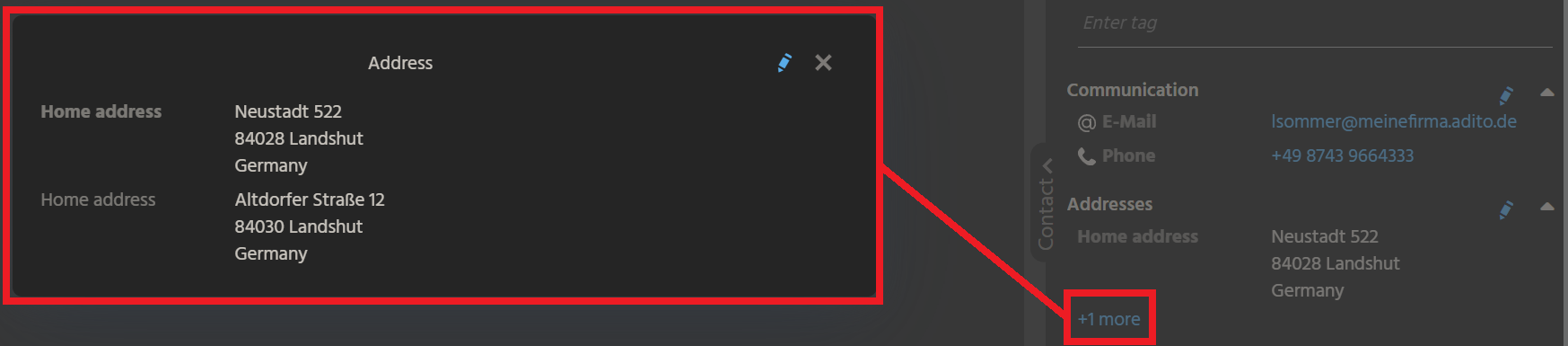 Figure: TitledList with
 rowLimit set to 1.
Behavior
Each row consists of:
- a title defined through
titleField - one or more data fields defined through
columns - optional highlighting based on
highlightingField - an optional row limit defined through
rowLimit
If more rows are available than allowed by rowLimit, the client shows a + X more link. Selecting that link opens the remaining rows in a popup window.
Configuration
The following properties are relevant:
| Property | Description | Required |
|---|---|---|
columns | Defines the fields displayed in each row. | Yes |
titleField | Defines the title shown for each row. | Yes |
highlightingField | Defines a boolean field used for row highlighting. | No |
rowLimit | Defines the number of rows initially shown. | No |
To configure columns, open the property editor and add, remove, or reorder the required fields.
Example usage
An example is the ViewTemplate Addresses in AddressList_view, which is used in the PreviewViews of both Person and Organisation.
In this example, ADDR_TYPE is used as titleField, while fields such as country, ZIP code, and city are shown on the right. If IS_STANDARD is used as highlightingField, rows representing the standard address are shown with a highlighted title.
Implementation hints
When an EntityField with content type HTML is included in columns, it is rendered as a rich-text field using the HTML editor.
Notes
By default, the client initially shows only six rows. Unlike maxDBRow, the rowLimit mechanism indicates that more rows are available instead of silently cutting the result set.