Replace a Library in the Designer
This guide explains how to replace a library JAR in an existing ADITO Designer installation. It is intended for cases where a developer provides an updated library and asks you to use it in an existing installation for testing or troubleshooting.
Summary
Use this procedure when you need to replace one or more JAR files in the Designer installation with a new version. A typical example is a replacement for propertly-core-1.0.13.jar, but the same approach also works for other libraries.
Prerequisites
- The Designer is closed before you start.
- You have received the replacement JAR from the responsible developer.
- You know the exact target file name that must be replaced in the installation.
Outcome
After completing the steps, the updated JAR is present in every relevant location of the Designer installation, and the Designer starts without errors.
1. Open the Designer installation folder
Open the installation directory of the existing Designer installation.
The exact location depends on the operating system and the local installation path. On Windows, the installation is often located below C:\Program Files\.... On Linux, use the directory where the Designer version was installed or unpacked.
Make sure the Designer is not running while you replace library files. Otherwise, files may be locked or the running application may still use the old JAR.
2. Search for the library that must be replaced
Search the installation folder for the library to be updated.
For example, if the delivered replacement is related to propertly-core-1.0.13.jar, the installed file may appear under a different final target name inside the Designer installation, such as de-adito-propertly-propertly-core.jar.
On Windows in particular, search for the exact target file name used in the installation, not only for the original delivery file name.
If the developer asks you to replace a library on Windows, make sure you know the correct target name first. The developer should either provide a JAR that is already renamed correctly or tell you which installed file name must be replaced.
If the search returns multiple matching JAR files, note each location. All matching occurrences must be replaced.
Example search:
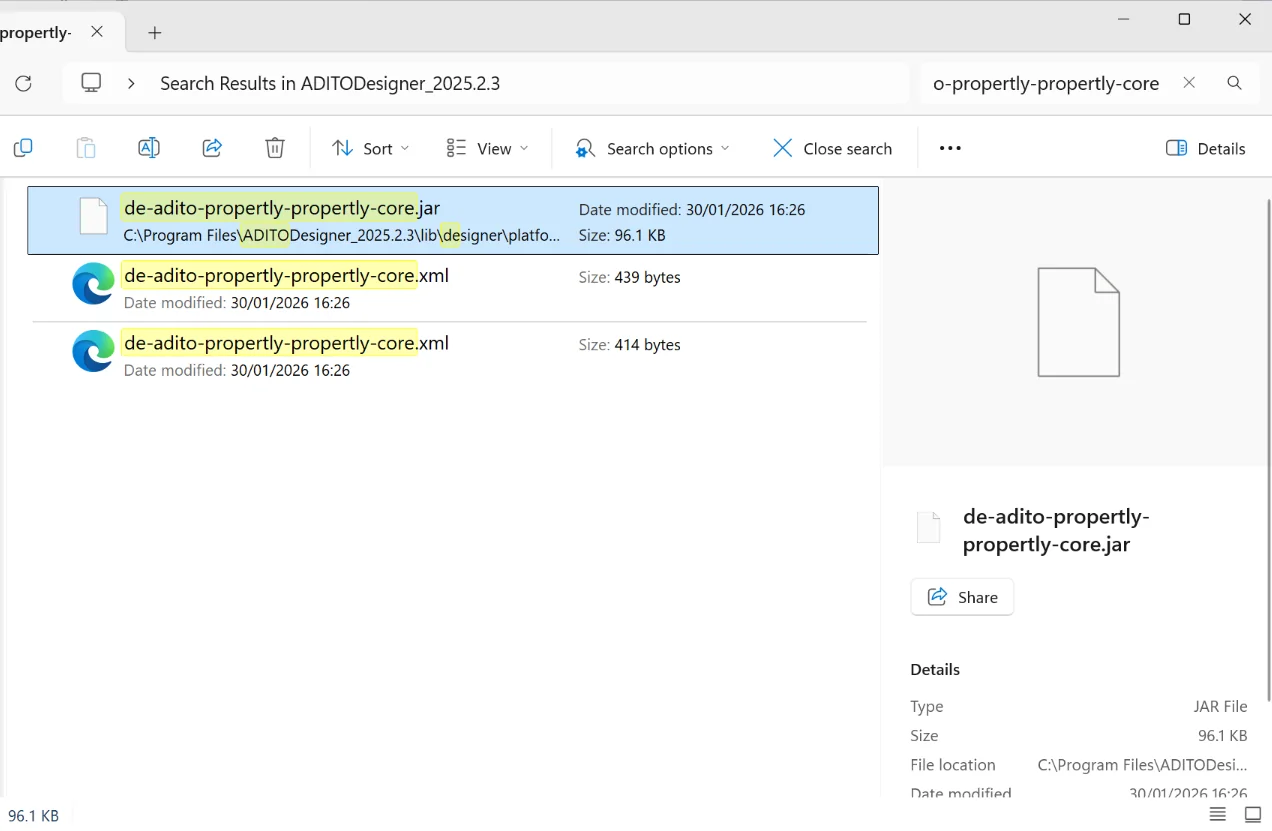 Figure: Example search result for a target library in a Designer installation.
3. Create a backup of the existing JAR
Before you overwrite any file, create a backup of the installed JAR in each location where it was found.
For example, you can copy the existing file to the same directory and add a suffix such as .bak, or store it in a separate backup folder. This makes it easier to restore the previous state if the replacement causes unexpected startup or runtime problems.
4. Rename the new JAR if necessary
If the replacement JAR does not already have the same file name as the installed target JAR, rename it now.
The replacement file must match the target name exactly before you copy it into the installation. This is especially important on Windows, where the file you received may not have the same name as the file found in the Designer installation.
5. Copy the replacement JAR into every matching location
Copy the new JAR into each folder where the existing target JAR was found, and overwrite the old file.
If the same JAR appears multiple times in the installation, replace it in every matching location. Do not update only one occurrence unless the responsible designer developer explicitly instructs you to do so.
6. Start the Designer and verify the result
Start the Designer again after all replacements are complete.
The replacement is usually considered successful when the Designer starts and no unusual errors occur during startup or normal use. If the original issue was reliably reproducible before the replacement, check whether it still occurs.
If possible, the responsible designer developer may also provide additional information about how to verify that the replacement was successful, for example by checking specific log output or diagnostics.
Troubleshooting
- If the Designer does not start after the replacement, restore the backup JAR files and contact the responsible designer developer.
- If the problem still occurs, confirm that every matching JAR location was updated.
- If the file name in the installation differs from the file you received, verify again that the replacement JAR was renamed to the correct target name before copying it.