Experimental: Working with the Extension Pack
Parallel operation between AOD and YAML is experimental.
Expect breaking changes, incomplete functionality, and workflow adjustments between versions. Use this workflow only in development environments.
The transfer back to AOD can overwrite existing files. Ensure that you can restore the previous project state if required. Creating a commit or backup before the transfer is strongly recommended.
Overview
This guide is intended for ADITO developers who are familiar with the ADITO Designer but have not previously worked with the Extension Pack in Visual Studio Code.
The ADITO Designer stores existing data models in AOD format. The Extension Pack provides schema-based validation, autocomplete suggestions, and structured editing support for the YAML representation. An existing AOD project must therefore be converted before you can use these features in Visual Studio Code.
The conversion does not permanently migrate the project to YAML. It creates a separate YAML working copy that can be edited in Visual Studio Code and subsequently transferred back to the original AOD project.
The Schema Catalog connects the YAML files to the data-model definitions of the corresponding ADITO core version. Visual Studio Code uses it to validate the files and provide property descriptions, error highlighting, and autocomplete suggestions.
This guide explains how to:
- Convert an existing AOD project into a YAML working copy.
- Open and edit the converted project in Visual Studio Code.
- Transfer the changes back to the AOD representation.
- Continue working with the transferred project in the ADITO Designer.
The same workflow applies to modularized projects and modules.
How parallel operation works
AOD and YAML files are not synchronized automatically. Changes are transferred explicitly in one direction at a time.
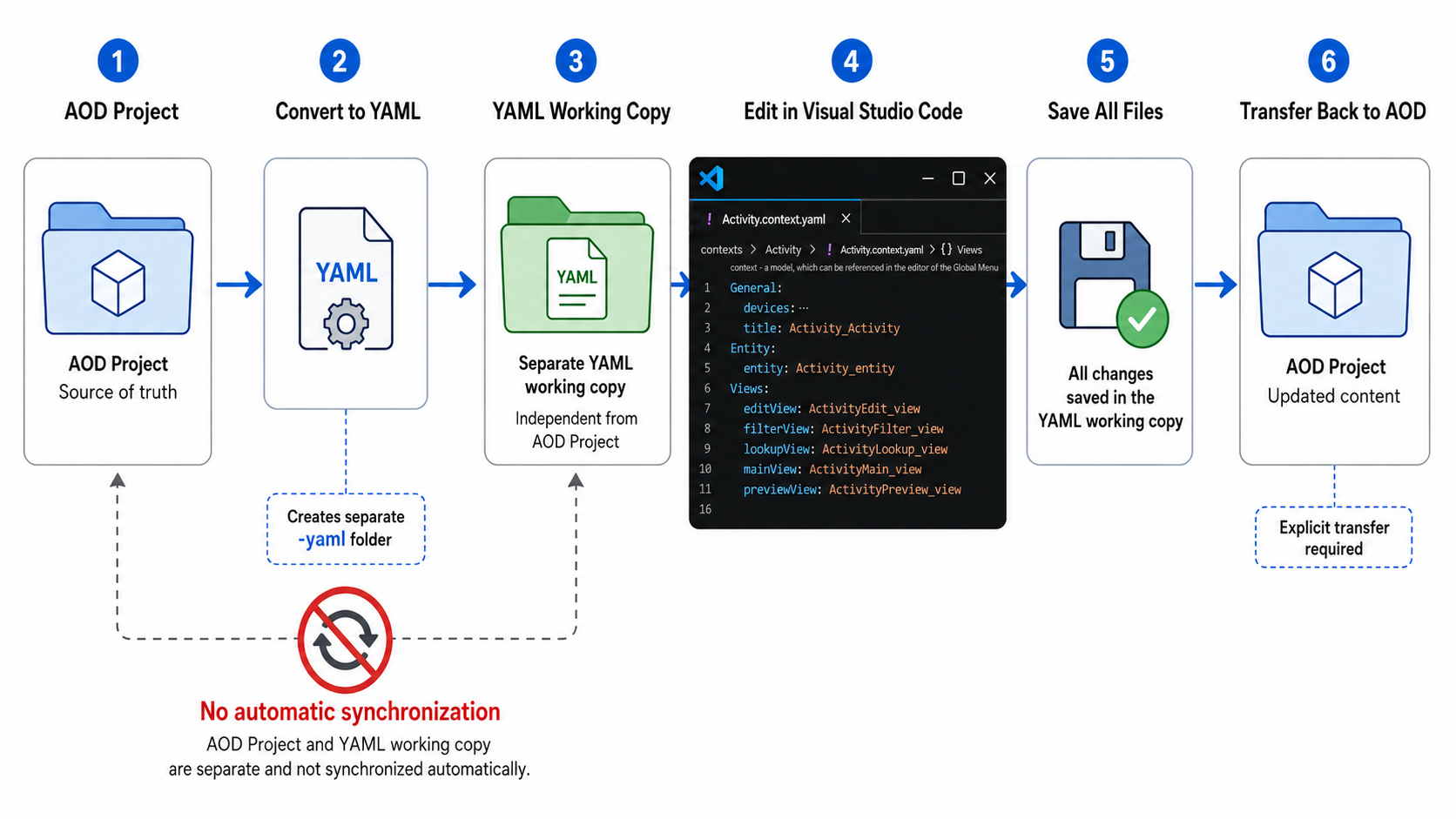
Figure: Schematic workflow for parallel operation.
The workflow consists of the following stages:
- The AOD project is the single source of truth and is shared with other team members through Git.
- The project is converted into a separate YAML working copy in a folder named
<your project>-yaml, next to the AOD project. - The YAML working copy is not synchronized automatically with the AOD project.
- You edit the YAML and JavaScript files in Visual Studio Code.
- After you finish your work in Visual Studio Code, save all changes.
- Transfer the changes back to the AOD project. You can then deploy the updated AOD project.
Do not edit the AOD project and its YAML working copy at the same time. Complete the changes in one representation before transferring them to the other representation.
Requirements
Before converting a project, verify that the required software, versions, and configuration are available.
Supported operating systems
The converter is currently available for the following operating systems:
- Microsoft Windows is supported.
- Debian-based Linux distributions, such as Ubuntu, are supported.
- Other Linux distributions, such as Alpine Linux or Arch Linux, have not been tested and might not work.
- macOS is currently not supported.
Designer application version
Use ADITO Designer version 2025.2 or later. We recommend using the latest available stable version.
Designer versions earlier than 2025.2 are not supported.
Extension Pack and converter plugin
The following components must be available before the workflow can be used:
- You must install and configure Visual Studio Code.
- The ADITO Extension Pack must be installed in Visual Studio Code.
- The Experimental: Transpile and Deploy plugin must be installed and enabled in the ADITO Designer.
- The Designer must be configured with the location of the Visual Studio Code installation that contains the Extension Pack. The Designer usually sets this location automatically when Visual Studio Code is installed in a default location for the operating system.
The actions Open in Extension Pack and Transfer Extension Pack Changes are available only when the required plugin and configuration are present.
If the actions described in this guide are not visible in the Designer, verify the plugin installation and the configured Extension Pack location before continuing.
Configure the Schema Catalog
Verify that schemas.json is available for your core version in the Version Management downloads section.

Figure: Downloads section in Version Management with the schemas.json file for the selected core version.
If schemas.json is not available for the required core version, that version cannot be used with the parallel-operation workflow.
Use the most recent available versions of the Designer and the schemas to ensure that all features are up to date.
Configure the following settings in the ADITO Designer:
- Open the required core version in Version Management.
- Select
schemas.jsonand copy its URL from the browser address bar. - Open the ADITO Designer settings.
- Navigate to the settings for Transpile and Deploy.
- Enter the copied URL in the Schema Catalog field.
- Configure the Extension Pack Location so that it points to the Visual Studio Code executable that contains the installed Extension Pack.
- Apply the settings.
The Schema Catalog URL has the following structure:
https://releases.adito.cloud/<majorVersion>/<versionNumber>/schemas.json
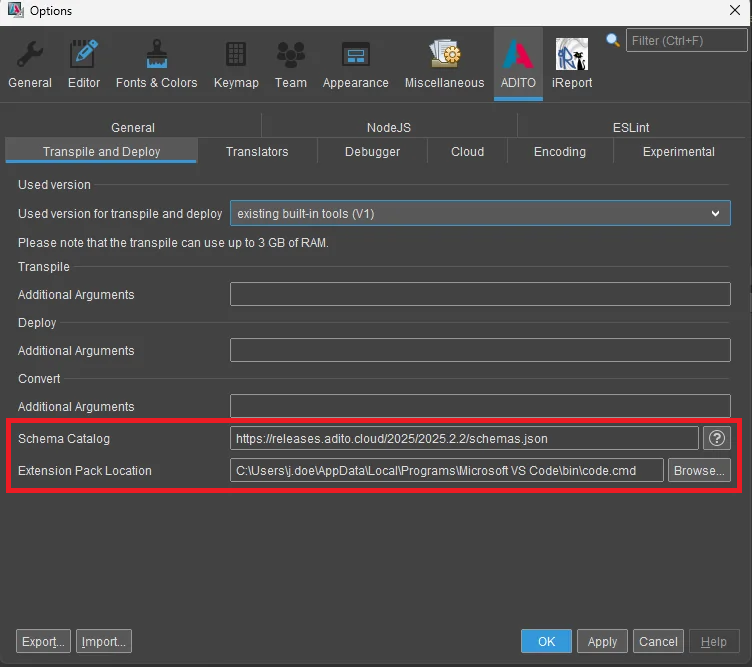
Figure: Schema Catalog URL setting in the ADITO Designer
The converter includes the configured Schema Catalog URL in the generated Visual Studio Code workspace settings.
Verify the Schema Catalog whenever the project is changed to a different ADITO core version.
Devtools version 3
Devtools version 3 or later is recommended because it provides improved JavaScript type information and workspace configuration.
Use the following Devtools actions where applicable:
- Use createTypes in modules that provide JavaScript processes. The generated declaration files allow other processes to resolve exported APIs and provide autocomplete suggestions.
- Use createJsconfig in the project and its modules. The generated
jsconfig.jsonfiles allow Visual Studio Code to resolve the JavaScript workspace structure correctly.
These actions improve editing support but do not replace the Schema Catalog required for YAML validation.
Optional Preparation of the AOD Project
The conversion can usually be started directly from the current AOD project state. The following preparation steps are optional and depend on the project and the intended workflow.
Upgrade the project models
Run Upgrade All Models if the project contains older model structures or if the current Designer version reports that an upgrade is required.
You do not need to run this action before every conversion. Run it when you switch Designer versions or when the Designer reports that an upgrade is required.
Deploy the project
Deployment is not required for the conversion itself. Deploy only if the current development workflow requires the connected SSP system to reflect the latest AOD project state.
Create a recoverable project state
The transfer from YAML back to AOD can overwrite existing files in the target project.
Create a commit or backup before the transfer if you need a simple way to restore the previous state. You can omit this step if the current project state can be recreated or if you consciously accept the risk of losing local changes.
Uncommitted changes in the AOD project can be overwritten during the transfer back from YAML. Review the current project state before starting the workflow.
Convert the Project from AOD to YAML
The ADITO Designer provides two entry points for opening a project in the Extension Pack.
| Action | Result |
|---|---|
| Open in Extension Pack | This action converts the complete project and opens the generated YAML workspace root in Visual Studio Code. |
| Open Process in Extension Pack | This action converts the complete project and then opens the selected JavaScript process in Visual Studio Code. |
The second action does not convert only the selected process; it also converts the complete project.
Open in Extension Pack
In the ADITO Designer, invoke Open in Extension Pack by using one of the following methods:
- Select the action in the project context menu.
- Select the corresponding action in the global toolbar.
- Press F7.
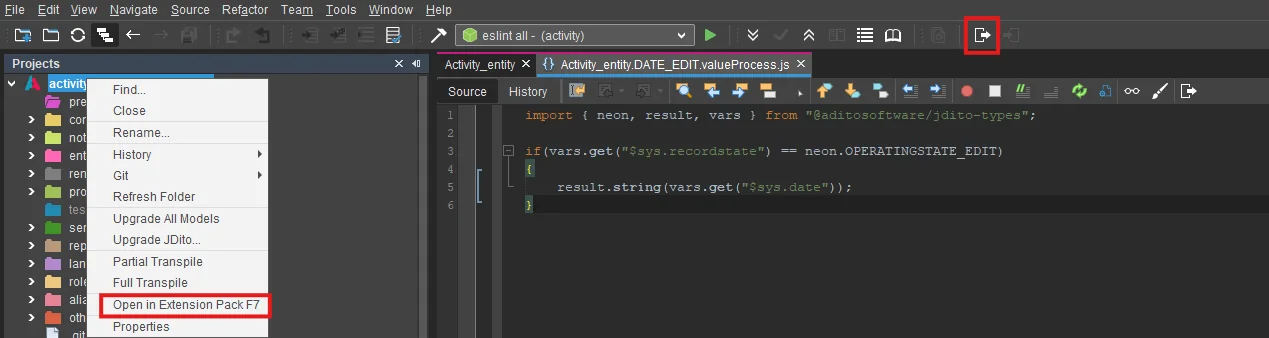
Figure: Project context menu and global toolbar with the Open in Extension Pack action highlighted.
The converter creates a separate YAML working copy next to the original project directory. The target directory uses the suffix -yaml.
For example:
C:\dev\projects\activity
C:\dev\projects\activity-yaml
The original AOD project remains the target for the later transfer back from YAML.
Do not start another conversion while the existing -yaml directory contains changes that have not yet been transferred back. A repeated conversion can replace or regenerate content in the YAML working copy.
Open Process in Extension Pack
Use Open Process in Extension Pack when you want to convert the complete project and open a specific JavaScript process immediately afterward.
Invoke the action by using one of the following methods:
- Select the corresponding action in the Designer code editor.
- Press Ctrl+F7.
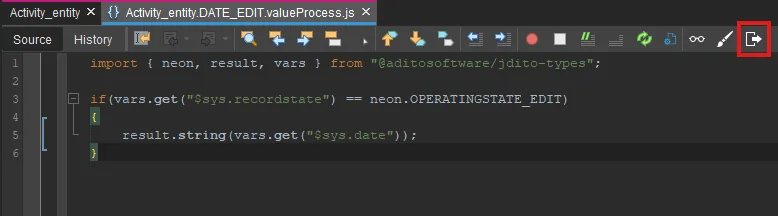 Figure: JavaScript editor with the Open Process in Extension Pack action highlighted.
This action performs the standard project conversion and then opens the selected JavaScript file in Visual Studio Code. You can then edit the file directly without searching for it in the generated workspace.
Initialize the generated workspace
After the conversion has completed, Visual Studio Code opens the generated -yaml directory.
The converter does not copy generated or repository-specific directories such as:
node_modulesdist.git
The data directory is transferred to support project-specific database integration.
To work with JavaScript files, install the required dependencies with npm install from the root of the generated YAML workspace. Wait for the installation to finish without errors before editing JavaScript files.
If the project defines a different dependency-installation command, use the command documented for that project.
Verify the generated workspace
Before making changes, verify the generated workspace:
- Confirm that the expected
-yamldirectory is open in Visual Studio Code. - Open a supported YAML data-model file and verify that schema information is displayed.
- Review the Problems view and resolve configuration errors before continuing.
If all YAML files report missing schemas or unknown properties, verify the configured Schema Catalog URL and repeat the conversion after correcting the configuration.
Understand the Generated Workspace
The generated YAML workspace represents the same project content in a file structure intended for editing in Visual Studio Code.
Depending on the project content, the workspace can contain directories such as the following:
| Directory | Purpose |
|---|---|
.liquibase | Contains Liquibase scripts that can be executed through the Liquibase extension. |
.vscode | Contains Visual Studio Code configuration files. |
contexts | Contains contexts, their entities and views, and the associated processes. |
processes | Contains global process data models and their associated JavaScript implementations. |
modification | Contains model contributions and modifications. These files remain in AOD format. |
The available directories depend on the data models contained in the converted project.
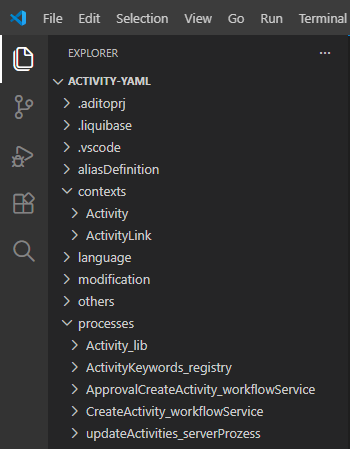
Figure: The module activity in Visual Studio Code
The generated workspace is a separate working representation. It is not automatically synchronized with the AOD project and does not contain the .git directory of the original project.
Edit YAML and JavaScript in Visual Studio Code
The Extension Pack supports editing the generated YAML data models and JavaScript processes directly in Visual Studio Code.
This section describes the available editing mechanisms without prescribing a specific customization example.
Edit existing YAML data models
Open a supported *.yaml file from the generated workspace. The configured Schema Catalog provides the following functions:
- Visual Studio Code reports missing required properties and invalid values in the editor and in the Problems view.
- Autocomplete suggestions provide valid properties for the current data-model type.
- Property documentation describes the selected property and can include expected values or defaults.
- The YAML structure is checked against the schema assigned to the file type.
Press Ctrl+Space to request autocomplete suggestions at the current cursor position.
The first suggestion can contain the required structure for an empty data-model file. Additional suggestions provide optional property groups that can be added to the current structure.
Use the documentation panel of the selected autocomplete suggestion to review the property description and the proposed YAML structure before inserting it.
The documentation may not be visible when you first view a suggestion. Click the Read More arrow to display it. Visual Studio Code usually remembers this setting after you select it once.
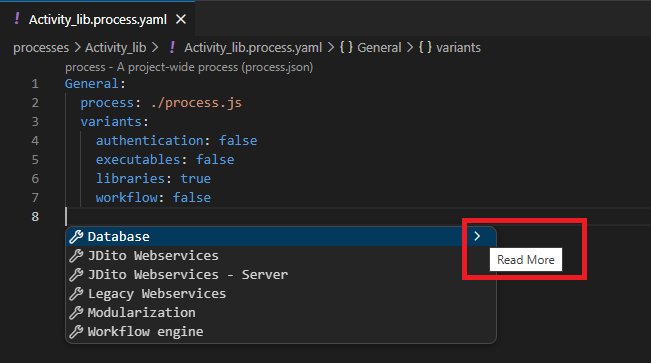
Figure: The "Read More" arrow for showing the documentation in the suggestions
Review validation results
Schema validation is performed while the YAML file is edited. Review all reported problems before transferring changes back to AOD.
A validation message can indicate one of the following conditions:
- A required property is missing.
- A property is not valid for the current data-model type.
- A value does not match the expected type or allowed values.
- The file is not associated with the correct schema.
- The YAML syntax is invalid.
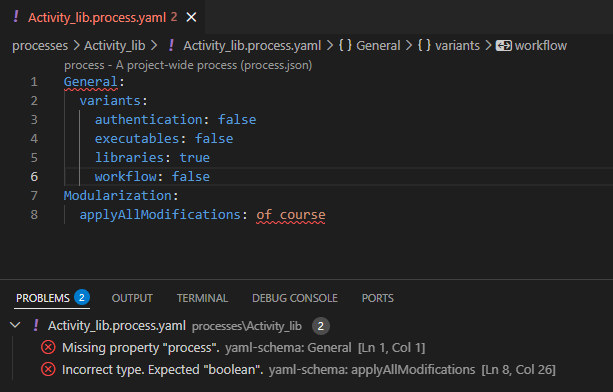
Figure: Activity_lib with missing process and invalid type for applyAllModifications
An error in a newly created, empty file is expected until you add its required properties. Errors in all existing files usually indicate a Schema Catalog or workspace configuration problem.
Edit JavaScript processes
JavaScript files can be edited directly in the generated workspace. The available type information and autocomplete support depend on the generated declarations and jsconfig.json files.
Use createTypes when a module must expose process APIs to other JavaScript files. Use createJsconfig when the JavaScript workspace structure must be regenerated.
References from a YAML process model to a JavaScript file are resolved relative to the YAML file unless the corresponding data-model definition specifies otherwise.
AOD files in Visual Studio Code
The Extension Pack workflow is intended for the generated YAML and JavaScript files.
AOD files do not receive schema-based validation or autocomplete support in Visual Studio Code. Continue to maintain AOD content in the ADITO Designer and use the conversion workflow for supported editing in Visual Studio Code.
Save all changes
Save all modified files before starting the transfer back to AOD.
Use File > Save All in Visual Studio Code or the corresponding keyboard shortcut for the operating system. Unsaved editor content must not be treated as part of the transfer.
Transfer Extension Pack Changes
The Transfer Extension Pack Changes action transfers changes from the YAML working copy back to the AOD project after you finish editing in Visual Studio Code.
The transfer converts the YAML working copy into the AOD representation used by the existing Designer project.
The transfer writes generated AOD content into the target AOD project and can overwrite existing files. Create a recoverable project state beforehand when you need to restore the previous content.
Follow these steps:
- Save all modified files in Visual Studio Code.
- Return to the ADITO Designer.
- Invoke Transfer Extension Pack Changes from the project context menu or the global toolbar, or press F8.
- Wait until the conversion has completed.
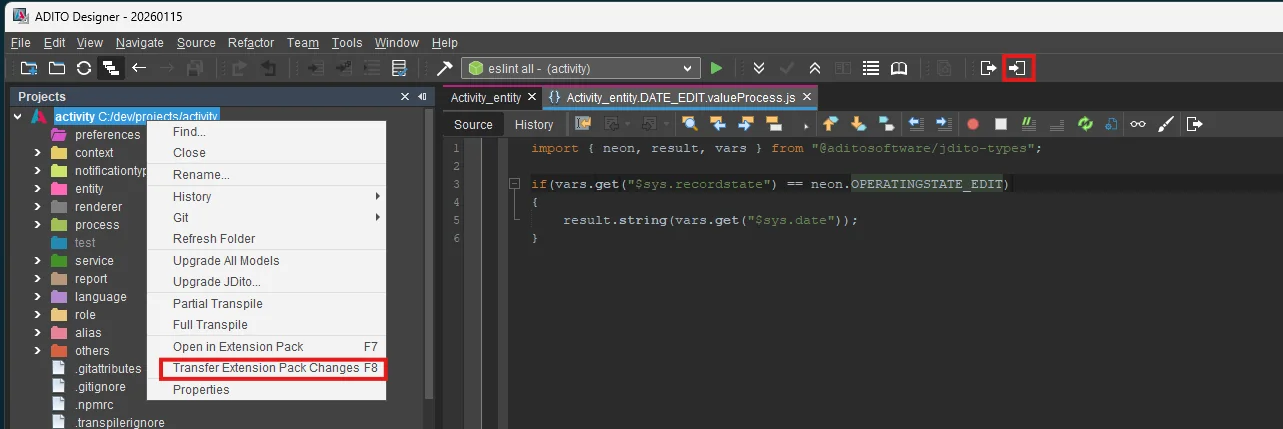 Figure: Project context menu and global toolbar with the Transfer Extension Pack Changes action highlighted.
After the transfer, continue working with the updated AOD project in the Designer.
Depending on the project workflow, you can optionally deploy the project to a development system or commit the transferred changes to version control.
Workspace Metadata and Maintenance
The conversion workflow creates workspace-specific configuration and metadata files.
Visual Studio Code workspace settings
The .vscode folder contains settings for the YAML workspace.
The main file is .vscode/settings.json. It contains the Schema Catalog URL used by the generated workspace and can also contain additional project-specific Visual Studio Code settings.
The generated -yaml directory does not contain the .git directory of the original AOD project. Commit the .vscode folder only if the YAML workspace is maintained in a version-controlled repository or if the folder is moved into the repository structure defined for the project.
Converter metadata
The following files contain structural metadata used by the conversion workflow:
.metadataIndex.json.metadataFile
You can commit these files if the project repository includes the corresponding YAML workspace metadata. They are not ADITO data models and must not be included in the transpile output.
Add the files to .transpilerignore:
.metadataIndex.json
.metadataFile
The exact repository location of workspace-specific files depends on the project setup. Ensure that the team uses one consistent location and does not maintain conflicting copies in the AOD and YAML directories.
Troubleshooting
The following checks cover common problems in the conversion workflow.
| Problem | Recommended check |
|---|---|
| The Open in Extension Pack action is missing. | Verify that the Experimental: Transpile and Deploy plugin is installed and enabled and that the Extension Pack location is configured in the Designer settings. |
| Visual Studio Code does not open after conversion. | Verify the configured executable path in Extension Pack Location and confirm that the configured Visual Studio Code installation starts independently. |
The -yaml directory is not created. | Review the converter output and verify that the AOD project is accessible and not blocked by file-system permissions. |
| All YAML files report schema errors. | Verify that the Schema Catalog URL belongs to the project's core version and is accessible from the development environment. |
| Autocomplete suggestions are not available. | Verify that the file is recognized as YAML, that the correct schema is assigned, and that the workspace was opened from its generated root directory. |
| JavaScript imports cannot be resolved. | Verify that npm install, createTypes, and createJsconfig were completed where required and that Visual Studio Code uses the generated workspace root. |
| The transfer does not include recent changes. | Verify that all files were saved before invoking Transfer Extension Pack Changes. |
| The daemon reports an inotify limit error on Linux. | Check the daemon log for inotify.instance.limit and follow Linux: inotify limits. |
For additional limitations, see the known issues.