Configuration of the Mailbridge
The Mailbridge system requires several configuration steps across different levels of the ADITO environment. This document outlines the procedures for defining aliases, configuring project-wide preferences, setting up technical users, and activating the service within the instance configuration. It also covers the IMAP configuration for Microsoft Exchange Online and Office 365 when the Mailbridge authenticates with OAuth2.
This section covers the IMAP mail server. Microsoft Graph-based mail server and repository connections are described in Graph Mailserver and Mail Repository.
Mailserver Alias Definition
The initial step in setting up the Mailbridge is the definition of a mailserver alias. This alias serves as the connection point between the ADITO system and the external mail server.
To create a new mailserver alias, right-click the alias node in the project tree and select New.
Assign a descriptive name, such as mailserverMailbridge. In the subsequent dialog, select Mailserver IMAP
as the alias type.
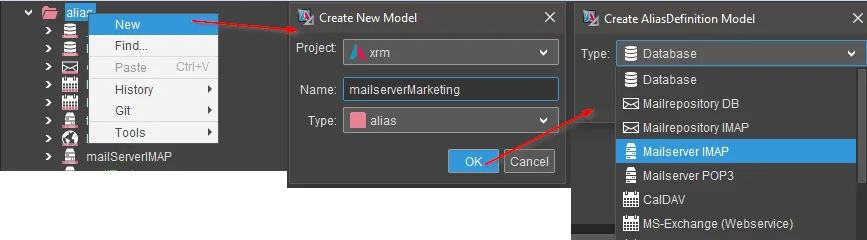 Figure: Creating a new Mailserver IMAP alias in the project tree.
If incoming emails must be archived or copied to a repository, a second alias for the mail repository is required.
Standard xRM-based projects typically include a pre-defined database mail repository alias named defaultDbRepository.
If this alias is missing or a different storage method is required, create a new alias and select either
Mailrepository DB for database storage or Mailrepository IMAP if the emails should be stored in a separate IMAP
account. There is also a new mail repository type for Microsoft Exchange (Mailrepository Graph).
Like the mailserver for Graph, the mail repository for Graph is covered in a separate section.
When using an IMAP repository, a distinct mail server user or a different folder within the same mailbox must be specified to avoid conflicts with the primary Mailbridge account. All new alias definitions must be deployed to the system to become active.
System Alias Configuration
After deployment, the alias definitions are available for system-specific configuration. Open the target system in the project tree to create the necessary alias configurations.
Right-click the respective alias entry and select Create from the context menu to initialize the configuration.
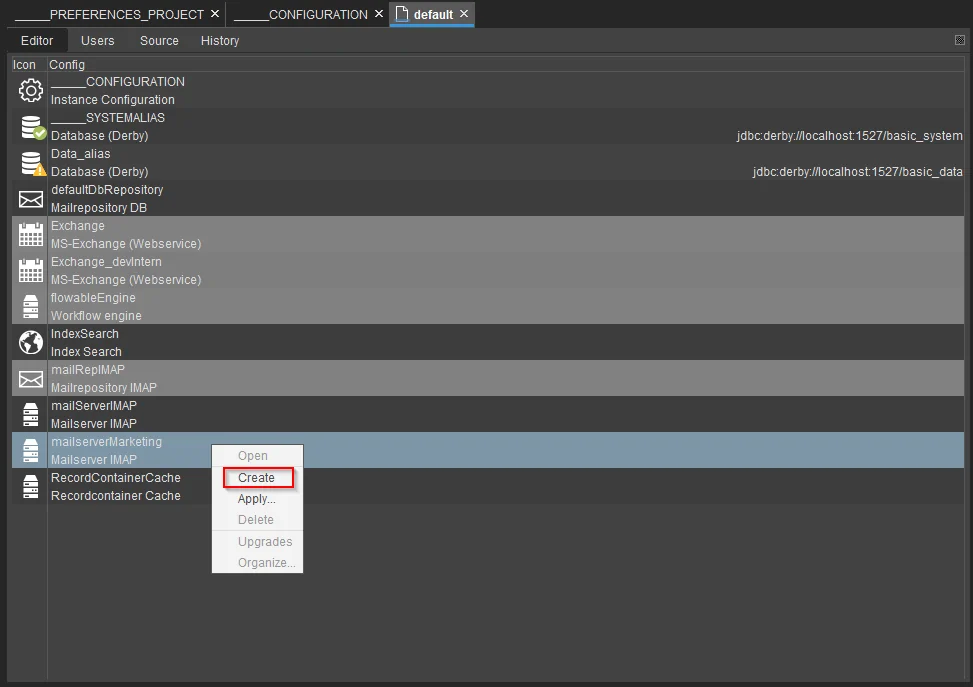 Figure: Initializing the alias configuration within the system settings.
Once the alias configuration is created, the connection properties for the receiving side of the mailserver alias must be defined.
 Figure: Configuration interface for mailserver IMAP properties.
Technical Connection Properties
The following table describes the essential properties for the IMAP connection:
| Property | Description |
|---|---|
| host | The IP address or URL of the mail server, supporting both on-premise solutions and cloud services like Microsoft 365. |
| port | The port used for IMAP communication. While port 143 is the standard for unencrypted or STARTTLS connections, the specific port depends on the server environment. |
| connectionSecurity | Defines the encryption method. This must match the server configuration and can be set to Off, TLS, or SSL. |
| authenticationType | Specifies the authentication method, supporting either BASIC or OAUTH2. |
Shared Inboxes
If the mailbridge should process a shared inbox, additional settings are required in the alias configuration and in the technical user configuration. The shared inbox must not be configured like a standalone mailbox with its own login.
For the Mailserver IMAP alias, enable the isPublicMailbox option. This setting is required so that the mailbridge treats the target mailbox as a shared mailbox instead of a personal mailbox.
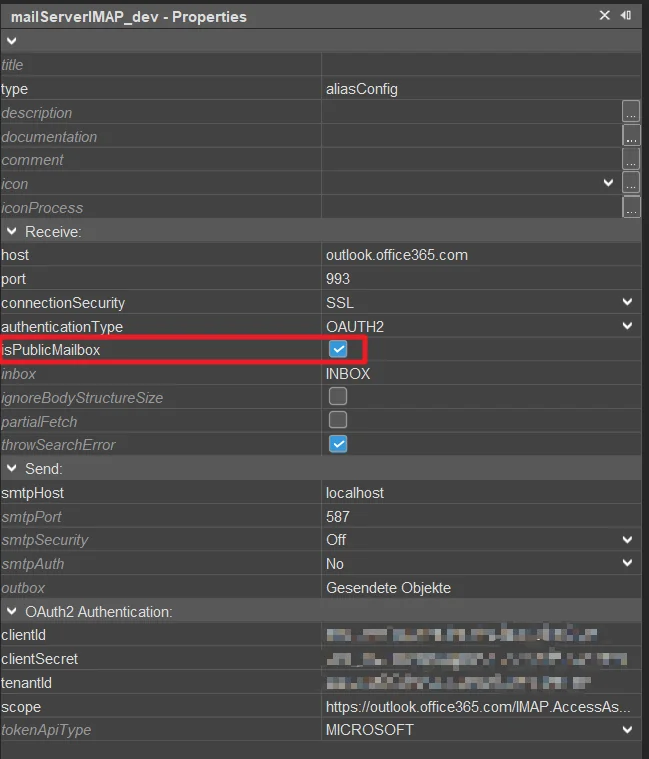 Figure: The
 isPublicMailbox option in the IMAP mail server alias configuration.
OAuth2 Authentication
Selecting OAUTH2 as the authentication type adds several specific properties to the configuration sheet.
 Figure: Additional configuration fields for OAuth2 authentication.
For Microsoft Exchange Online or Office 365, the IMAP mail server usually uses the following connection values:
| Property | Value for Exchange Online |
|---|---|
| host | Use outlook.office365.com for the IMAP endpoint. |
| port | Use 993 for IMAP over SSL. |
| connectionSecurity | Use SSL unless the customer-specific mail server configuration requires a different setting. |
| authenticationType | Use OAUTH2 so that the mailbridge requests an OAuth token instead of using basic authentication. |
| smtpHost | Use smtp.office365.com when the same configuration is also used for SMTP. |
| smtpPort | Use 587 for SMTP with TLS. |
| smtpSecurity | Use TLS for SMTP. |
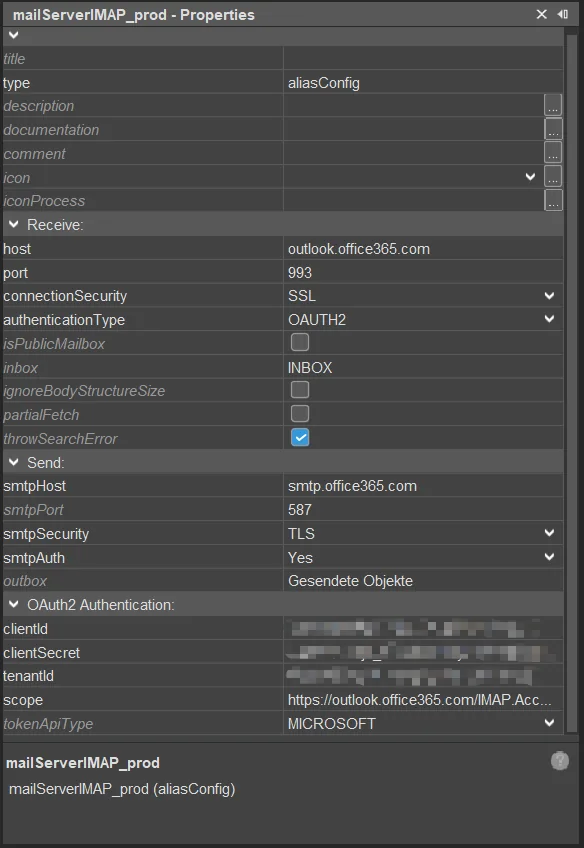 Figure: Example IMAP alias configuration for Exchange Online with OAuth2.
For integration with Microsoft Entra ID or a comparable identity provider, configure the required permissions in the provider before the alias is used in ADITO. The technical user or application must have the necessary permissions to read, modify, and delete emails within the mailbox that is processed by the mailbridge.
Microsoft 365 OAuth2 Permissions
For delegated IMAP access with a technical Microsoft 365 user, the Microsoft Entra application requires the delegated
permission IMAP.AccessAsUser.All. Microsoft documents the corresponding IMAP scope as
https://outlook.office.com/IMAP.AccessAsUser.All in its OAuth guidance for IMAP, POP, and SMTP.
The following permissions are shown in Microsoft Entra for IMAP access:
| API | Permission | Type | Description |
|---|---|---|---|
| Microsoft Graph | IMAP.AccessAsUser.All | Delegated | Read and write access to mailboxes via IMAP. |
| Microsoft Graph | User.Read | Delegated | Sign in and read the user profile. |
| Office 365 Exchange Online | IMAP.AccessAsApp | Application | Allows the application to access mailboxes via IMAP. |
The scope property of the ADITO Mailserver IMAP alias must match the OAuth flow that is used:
| OAuth flow | Required configuration |
|---|---|
| Delegated access with a technical Microsoft 365 user. | Configure the Microsoft Entra application with IMAP.AccessAsUser.All and set the ADITO scope to https://outlook.office.com/IMAP.AccessAsUser.All. The technical user's mailbox credentials are still configured on the ADITO user. |
| Application access with client credentials or certificate authentication. | Configure the application permission IMAP.AccessAsApp, grant administrator consent, and use https://outlook.office365.com/.default as the token request scope. The application must also be allowed to access the target mailbox in Exchange Online. |
For Exchange Online mailboxes, use a Microsoft 365 account whose mailbox is hosted in Exchange Online. If signing in to Outlook on the web redirects the account to another mail system, the account may not work for the IMAP-based mailbridge.
The general ADITO OAuth2 authentication provider setup is described in Authentication methods. Microsoft maintains additional protocol-specific guidance in Authenticate an IMAP, POP or SMTP connection using OAuth.
Certificate-Based OAuth2 and MFA
Certificate-based OAuth2 can be used when the Microsoft 365 tenant requires a machine-to-machine authentication model
instead of a delegated user login. In this setup, the public certificate is uploaded to the Microsoft Entra application,
while the private key remains in the ADITO keystore. The certificate alias is then referenced in the ADITO
Authentication Provider alias.
When this approach is used to avoid MFA prompts for a technical background process, configure the Microsoft Entra application with application permissions only. Delegated permissions represent user access and can still be affected by Conditional Access or MFA policies. If the tenant enforces MFA for service principals or enterprise applications, configure a suitable Conditional Access exception for the service principal together with the tenant administrator.
For the certificate storage requirements and the ADITO keystore properties, see Certificate Authentication.
Project-wide Mailbridge Preferences
Global settings for the Mailbridge are managed within the project preferences. Open the preferences node in the
project tree and navigate to the _PREFERENCES_PROJECT data model, then select the Email section (under the Modules
node).
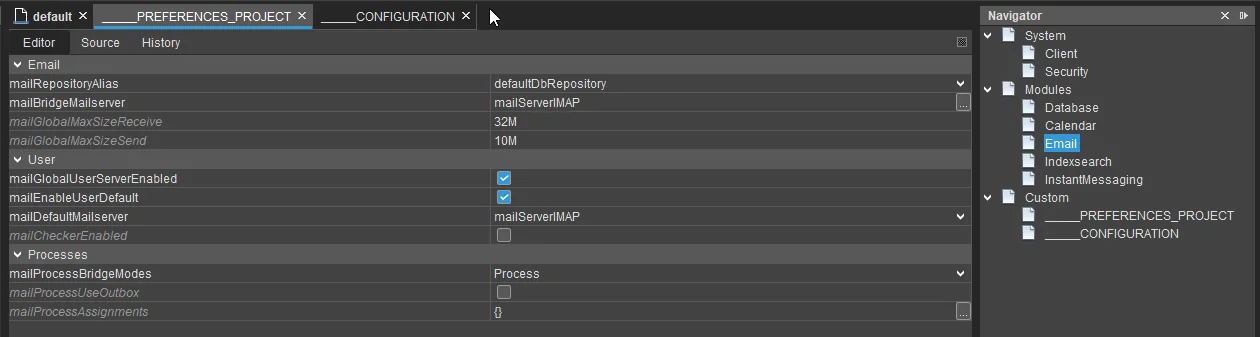 Figure: Project-wide email and mailbridge preferences.
Mailbridge Configuration Details
The mailBridgeMailserver property defines the active mail bridges and their behavior through a dedicated configuration dialog.
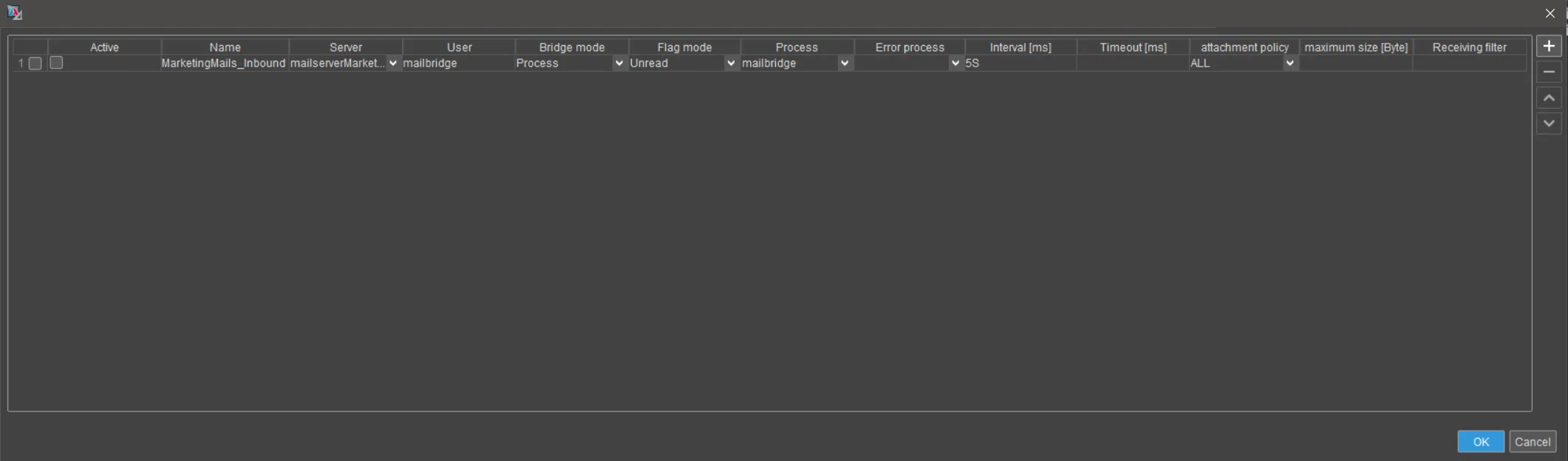 Figure: Dialog for managing multiple mailbridge instances.
The configuration options within this dialog include the following parameters:
- Active: This checkbox determines whether the specific mailbridge instance is currently operational.
- Name: A freely definable identifier used to distinguish between different mailbridge configurations.
- Server: The alias of the mailserver that this mailbridge instance will monitor.
- User: The login name of an ADITO user whose credentials and email settings are used for server authentication.
- Bridge mode: Defines the processing logic.
Processonly executes the assigned logic,Copyonly archives the email to the repository, andBothperforms both actions. - Flag mode: Determines which emails are retrieved based on their status, such as
New,Read,Unread, orAll. - Process: Specifies the project process to be executed for each email when the bridge mode includes processing.
- Error process: Defines a fallback process that is triggered if an error occurs, such as when email attachments exceed size limits.
- Interval (ms): The frequency of the mailbridge execution cycles. Values can be specified in milliseconds or using
suffixes like
S(seconds),M(minutes), orH(hours). - Timeout (ms): The maximum duration the system attempts to read from the mailbox before terminating the attempt.
- Attachment policy: Controls how attachments are handled.
ALLprocesses all attachments within size limits,THRESHOLDreplaces attachments exceeding the limit with empty files, andNONEignores all attachments. - Maximum size (Byte): Overrides the global
mailGlobalMaxSizeRecieveproperty for this specific mailbridge instance. - Receiving filter: Additional processing of the email can be performed based on the expression defined here.
The maximum size of an email as used in the attachment policy is set in the mailGlobalMaxSizeRecieve property or in
the maximum size column of the mailbridge configuration.
The execution interval should not be set below 5 seconds to prevent performance issues and excessive server load.
Flag Modes
| Flag | Meaning |
|---|---|
| New | Only fetches newly received emails. This does not include older unread emails. |
| Read | Only fetches emails that were read by a user. |
| Unread | Fetches all unread emails. |
| All | Fetches all emails in the specified inbox of the mailbridge user. |
Available Process Variables
When a process is triggered by the mailbridge, several local variables are provided to handle the email data:
| Variable | Description |
|---|---|
$local.mail | Contains the complete email object including headers and content. |
$local.recipients | Provides an array of all recipient email addresses. |
$local.sender | Contains the sender's email address. |
In the event of an error, the following variables are available in the error process:
$local.error: The specific ADITO error code.$local.errorid: The unique identifier of the error occurrence.$local.errormessage: The descriptive error message.$local.mailid: The identifier of the email that caused the error, allowing for manual intervention or separate processing.
Receiving Filters
| Value | Description |
|---|---|
CRLF | Replaces line breaks with \r\n. This can be used to ensure correct processing when emails were created on operating systems that use only \n or only \r as line breaks. |
Extractattachment | Expects each incoming email to contain exactly one attachment and uses that attachment to create the mail object. |
Extractattachment2 | Expects each incoming email to contain exactly one attachment encoded with the MIME type Message/rfc822. The mailbridge extracts the attachment and creates the mail object from it. |
log | Writes the email to the log. |
printtext | Writes the email to the console logger. |
Technical User Configuration
The Mailbridge requires a dedicated ADITO user for authentication against the mail server. This technical user stores the credentials and folder configurations for the specific mailbox.
Each mail server requires a separate technical user, as a single user can only be associated with one set of mailbox
credentials. If a suitable user does not exist, create one in the system's user management by switching the system
editor to User and selecting Create User.
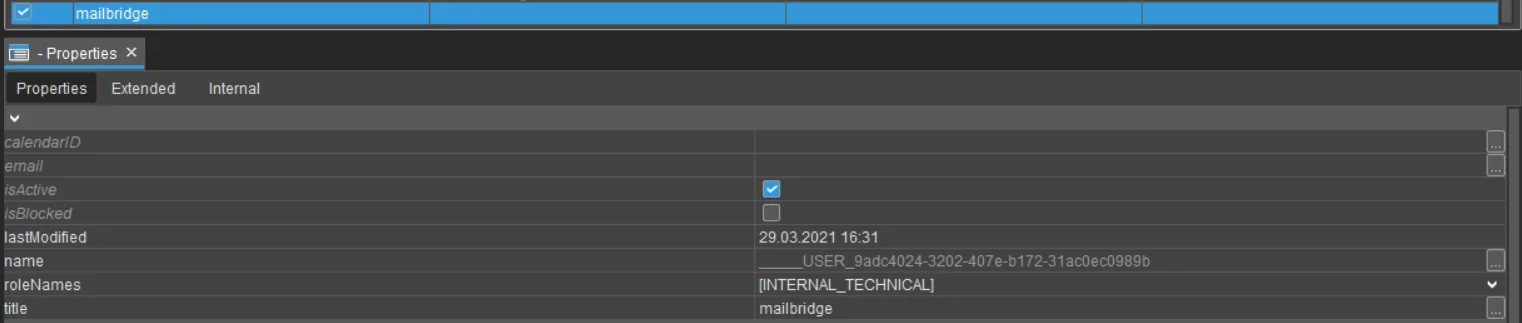 Figure: Basic property configuration for the technical mailbridge user.
Assign a descriptive title to the user, such as mailbridge_service. To ensure system security, assign the role
INTERNAL_TECHNICAL to the user. This role prevents the account from being used for interactive client logins,
restricting its use to background technical processes.
Extended Email Properties
Specific mailbox settings are configured in the Extended tab under the Email group.
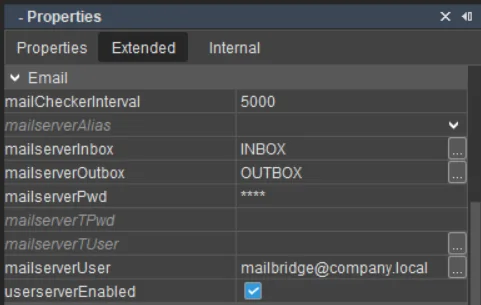 Figure: Configuration of mailbox-specific attributes.
The following properties must be configured for the technical user:
- mailserverInbox: The name of the folder on the mail server that should be processed as the inbox.
- mailserverOutbox: The name of the outbox folder. While not actively used by the mailbridge for processing, many mail servers require this value for a successful connection.
- mailServerTUser: The user name for the transport protocol. This is the account used for sending and, in shared inbox scenarios, typically the account that authenticates against the mail server instead of the shared mailbox address.
- mailserverPwd: The password for the mail server account.
- mailserverUser: The login name for the mail server account, often following the format
username@domain.com. - userserverEnabled: This checkbox must be active to enable the email subsystem for this user. For shared inboxes, this option must be enabled.
Shared Inbox User Settings
For shared inboxes, configure the technical user with the mailbox access information of the transport account and reference the shared inbox explicitly.
| Property | Required value for shared inboxes |
|---|---|
| mailServerTUser | The user name of the transport account that is used for sending and authentication. |
| mailserverUser | The value must use the format {transport-account-login}\{email-address-of-the-shared-inbox}. The {transport-account-login} part must match mailServerTUser. |
| userserverEnabled | The option must be enabled. |
Example:
mailServerTUser = service.account
mailserverUser = service.account\shared-inbox@example.com
Do not use the shared inbox address as the standalone login for the technical user unless that address is actually the transport account. The mailbridge must authenticate with the transport account and reference the shared inbox in the mailserverUser value.
Shared Inbox User Settings for Exchange Online
For shared inboxes, configure the technical user with the mailbox access information of the transport account and reference the shared inbox explicitly. The transport account must have access to the shared mailbox in Microsoft 365 or in the connected Exchange environment.
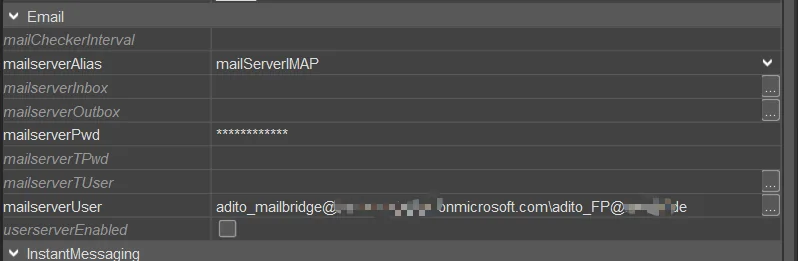 Figure: Technical user configuration for an IMAP shared mailbox.
| Property | Required value for shared inboxes |
|---|---|
| mailServerTUser | The user name of the transport account that is used for sending and authentication. |
| mailserverUser | The value must use the format {transport-account-login}\{email-address-of-the-shared-inbox}. The {transport-account-login} part must match mailServerTUser. |
| userserverEnabled | The option must be enabled. |
Example:
mailServerTUser = mailbridge.service@customer.onmicrosoft.com
mailserverUser = mailbridge.service@customer.onmicrosoft.com\shared-inbox@example.com
Do not use the shared inbox address as the standalone login for the technical user unless that address is actually the transport account. The mailbridge must authenticate with the transport account and reference the shared inbox in the mailserverUser value.
For Exchange Online shared mailboxes, use the sign-in name that is valid in the customer's Microsoft Entra tenant. This
is often the .onmicrosoft.com user principal name of the transport account. If the tenant is configured to use the
customer's primary mail domain for sign-in, use that domain consistently in mailServerTUser and in the transport
account part of mailserverUser.
If ADITO also sends emails through this technical user, mailServerTUser must contain the valid sending mailbox of the
transport account. Do not enter the combined shared mailbox value in mailServerTUser; use the combined value only in
mailserverUser.
Instance and Module Activation
The final configuration step takes place within the instance configuration of the target system. Open the
_CONFIGURATION node and navigate to Modules in the Navigator, then locate the Email group.
 Figure: Activating the email and mailbridge subsystems at the instance level.
The activation is controlled by the following properties:
- mailGlobalEnabled: This property serves as the master switch for the entire email subsystem. If disabled, all email-related functionality is inactive.
- mailBridgeEnabled: This setting activates the mailbridge service for the specific system instance.
- mailBridgeActiveMailservers: When the mailbridge is enabled, this property allows for the selection of specific mailbridge instances defined in the project preferences. By default, all defined mailbridges are active.
 Figure: Selecting specific mailbridge instances for the system instance.
Use the selection dialog to restrict the active mailbridges to those required for the specific system environment.