Technical workflow reference
ADITO workflows are modelled in Flowable Modeler and executed with Flowable Service. This reference covers workflow elements, variables and expressions, and the technical configuration of Flowable Service.
Model a workflow
A workflow consists of a start event, one or more flow elements, and an end event. Create and deploy the workflow in Flowable Modeler; use the workflow-definition context to make it available in the ADITO client.
Workflow properties
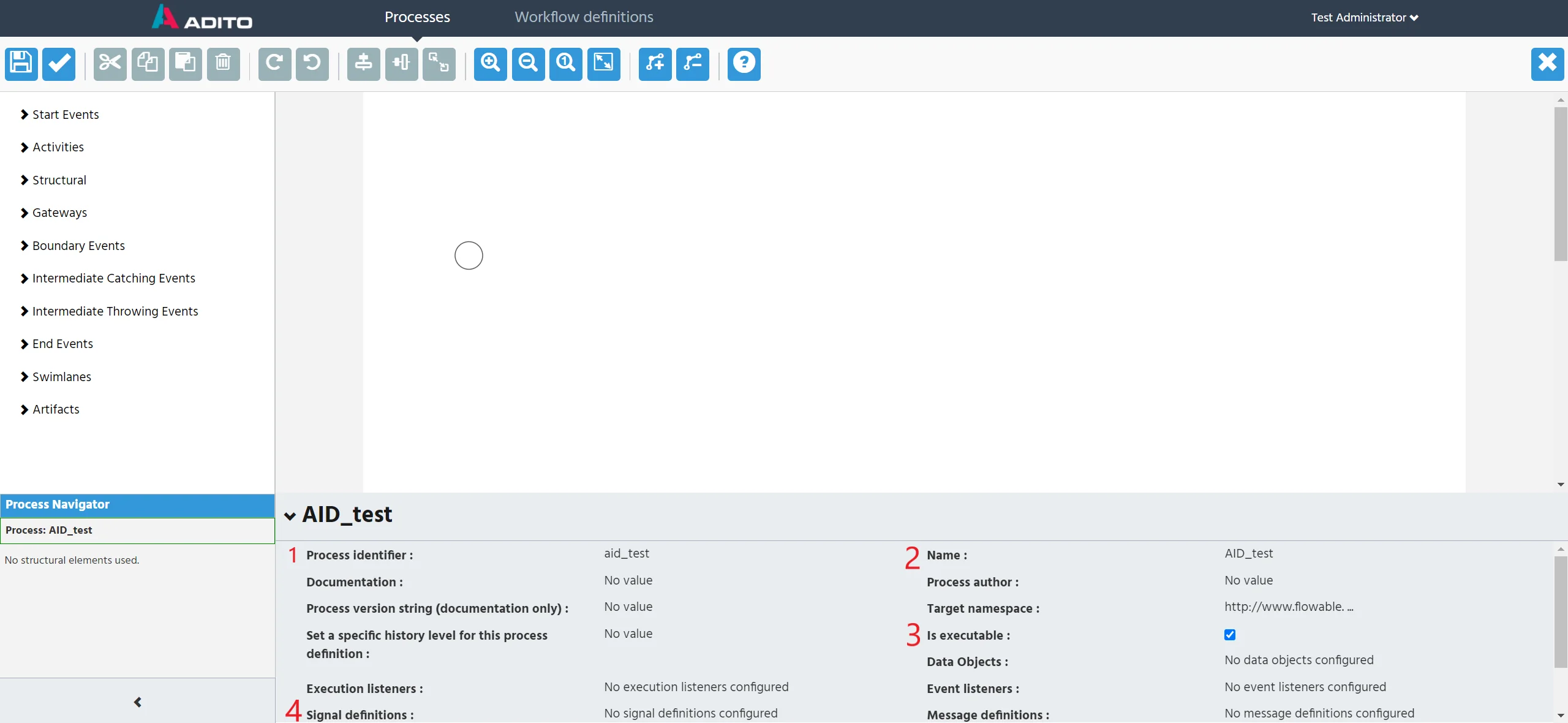 Figure: Workflow properties in Flowable Modeler.
| Property | Description |
|---|---|
| Process identifier | The ID of the workflow. |
| Name | The name displayed in the ADITO client. |
| Is executable | Defines whether the workflow can be executed. |
| Signal definitions | Optional. Defines signals that can trigger the workflow. |
Events and sequence flows
Every workflow requires a start event and an end event. Flowable Modeler adds a standard start event to new workflows. Use a Signal Start Event when the workflow must be triggered by a signal configured in ADITO.
A sequence flow connects one source element to one target element and defines the order in which the process runs.
| Property | Description |
|---|---|
| Flow condition | Optional for standard flows and required for exclusive gateways. The expression must return a Boolean value. |
Tasks
Use a user task for work completed by a person, a service task to call an ADITO process, and a script task to run a small calculation in the workflow.
User task
| Property | Description |
|---|---|
| Name | The name of the task displayed to the user in the ADITO client. |
| Assignments | The user or group that receives the task. |
| Form properties | Fields that users complete in the ADITO client. Their values are available in jDito code. |
Service task
Service tasks use ADITO processes with the workflow variant and communicate
through REST web services.
| Property | Description |
|---|---|
| ID | The unique ID of the task. |
| Name | The name used to distinguish the task. |
| Class | This value should already be set. |
| jDito process | The ADITO process that runs when the task starts. Its parameters are available in the jDito code. |
Script task
| Property | Description |
|---|---|
| Script format | Set this value to javascript. |
| Script | The script content. |
| Name | The name used to distinguish the scripts. |
Gateways
Gateways split or combine routes in a workflow.
| Gateway | Description |
|---|---|
| Exclusive Gateway | Creates alternative paths. A workflow instance can take only one of the outgoing paths. |
| Parallel Gateway | Creates parallel paths, for example to start multiple tasks at the same time. |
Workflow variables and expressions
Workflow variables transfer values between workflow elements and ADITO processes. They can be set in the following ways.
| Method | Use it to |
|---|---|
| Process start | Pass values when a workflow starts by key or signal. |
| Service task | Add values returned by a jDito service task. |
| Script task | Calculate and store a value in the workflow. |
| User-task form | Make entered form values available to later workflow elements. |
Set variables when starting a workflow
When you start a workflow directly by key or signal, pass targetId and
targetContext in addition to your own variables. These values are set
automatically when a workflow starts from an ADITO context or through the
Start Workflow action.
var workflowVariables = {
    targetId: vars.getString("$local.uid"),
    targetContext: ContextUtils.getCurrentContextId(),
    myVariable: "foo"
};

workflow.startProcessByKey("SalesProjectPhaseExecution", workflowVariables);
Set variables in a service task
Workflow variables are available in a service task as the JSON string in
$local.value. Values passed to result.object() are added to the workflow
variables when the service task runs.
var variables = JSON.parse(vars.get("$local.value"));
var activityId = variables.activityId;
var contactsStr = getContactsLinkString(activityId);

result.object({
    contactPersons: contactsStr,
    myServiceVariable: "foo"
});
Set variables in a script task
Use execution.setVariable(variableName, value) to set a variable from a
script task. This example calculates a due date.
var monthToAdd = parseInt(execution.getVariable("CareDueMonth"), 10);

if (isNaN(monthToAdd)) {
    monthToAdd = 0;
}

var date = new Date();
var newDate = new Date(date.setMonth(date.getMonth() + monthToAdd));

execution.setVariable("dueDate", newDate.toISOString());
Use form values and expressions
Values entered in a user-task form are available as workflow variables.
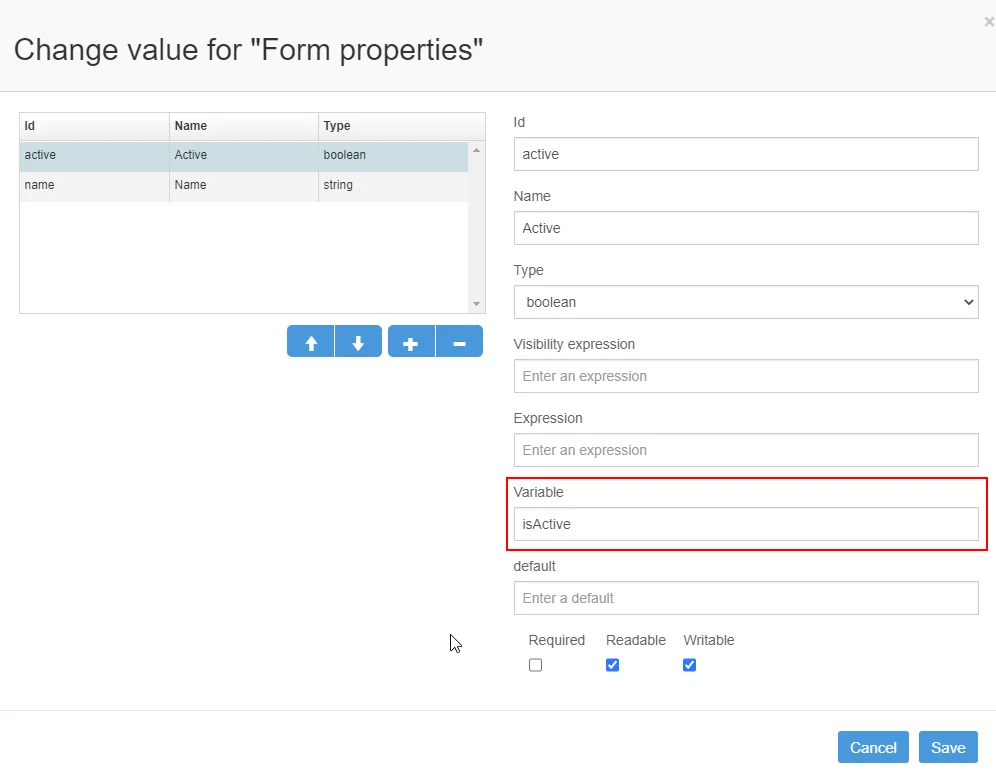 Figure: Form properties of a workflow user task.
Flowable resolves expressions with Unified Expression Language (UEL). For
example, use the following flow condition when the isActive variable must be
true:
${isActive == true}
Use variables:get, var, or vars when the variable might not be defined:
${variables:get(isActive) == true}
${vars:eq(isActive, true)}
Expressions can also set task properties dynamically.
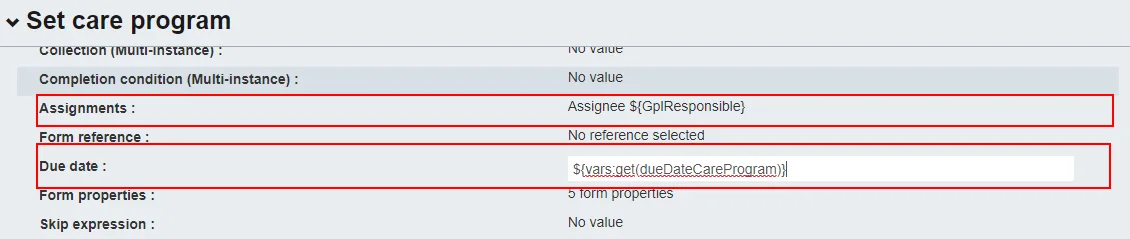 Figure: A user task with assignment and due date set by expressions.
The assignment field expects a user ID. A script task can calculate a due date and store it as a variable before the user task starts.
Show or hide form fields
Use a visibility expression on a user-task form field to show or hide it from
the values of other fields. The values are available through
currentValues.<fieldId> only within a visibility expression.
${currentValues.customerSatisfaction == true}
Additional workflow elements
Lookup component
Use the lookup component in a user task in Flowable Modeler to provide
lookup values from entities connected to WorkflowTask_entity in the workflow
module.
Timer events
Timer events, such as a boundary timer event, require an ISO 8601 duration or schedule expression. For an intermediate timer-catching event that must run from Monday to Saturday between 08:00 and 23:00, use the following Quartz cron expression:
* * 8-23 ? * 2-7 *
Configure Flowable Service
Configure Flowable Service with environment variables. The following variables
use SPRING_APPLICATION_JSON for the ADITO connection.
| Variable | Description | Default |
|---|---|---|
SPRING_APPLICATION_JSON | JSON configuration with aditoUrl, aditoUser, aditoPassword, and aditoExternalUrl. | See the alternative variables below. |
FLOWABLE_COMMON_APP_IDM-REDIRECT-URL | Login redirect URL. | https://localhost/flowable-idm |
FLOWABLE_COMMON_APP_IDM-URL | Flowable identity-management URL. | https://localhost/flowable-idm |
FLOWABLE_COMMON_APP_IDM-ADMIN_USER | Default administrator user name. | admin |
FLOWABLE_COMMON_APP_IDM-ADMIN_PASSWORD | Default administrator password. | test |
SPRING_DATASOURCE_DRIVER-CLASS-NAME | Database driver. | Embedded H2 database |
SPRING_DATASOURCE_URL | Database URL. | Embedded H2 database |
SPRING_DATASOURCE_USERNAME | Database user name. | Embedded H2 database |
SPRING_DATASOURCE_PASSWORD | Database password. | Embedded H2 database |
Alternatively, configure the ADITO connection with the following individual
variables instead of SPRING_APPLICATION_JSON.
| Variable | Description | Default |
|---|---|---|
ADITO_URL | ADITO server URL. | https://host.docker.internal:8443 |
ADITO_USER | ADITO authentication user. | flowableIdmService |
ADITO_PASSWORD | ADITO authentication password. | HczABCxBEUKSmwQEnT8vbmkE8Bj1hcXOKSbsLWBg |
ADITO_EXTERNAL_URL | URL used for browser redirects. | ADITO_URL |
Change the documented default credentials before using Flowable Service in a non-local environment.