Alias Definition
In some parts of an ADITO project, for example in the RecordFieldMapping of a Database RecordContainer, the database is not accessed directly but through the Alias Definition.
The Alias Definition, sometimes also described as the database structure of the project, is essentially a project-side representation of the database schema with additional metadata. For example, tables and columns can have properties such as title or documentation, which do not exist in the database itself.
To open the Alias Definition, go to alias in the Projects window and double-click Data_alias.
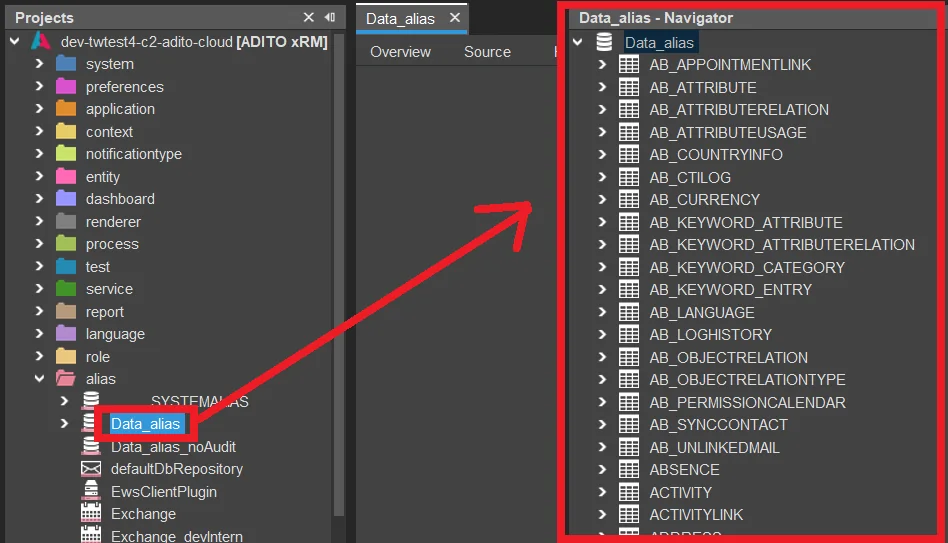
The Alias Definition contains database structure only, for example tables, columns, data types, constraints, and indices. It does not contain business data.
Updating the Alias Definition
Whenever you modify the database structure, for example by adding a table, you must update the Alias Definition so that the changes become available in the ADITO project.
Open the Alias Definition in the Navigator, right-click Data_alias, and choose Diff Alias <> DB Table:
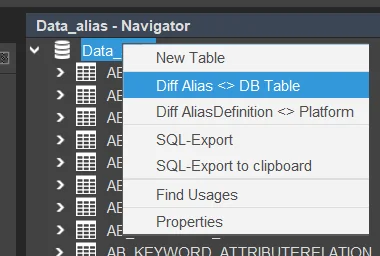
In the following dialog, select the project and the database alias, for example default, and confirm. ADITO then compares the database structure with the Alias Definition. Depending on the schema size, this may take some time.
After that, a larger dialog opens and shows all differences between the database structure on the right side (Data_alias [remote]) and the project-side Alias Definition on the left side (Data_alias [local]).
If you hover with the mouse pointer over the little "i" icon in the upper right corner of this dialog, a legend will pop up, explaining the meaning of the colors of the little bars shown in front of each table name.
If the database structure is newer than the Alias Definition, for example because new tables were added directly in the database, update from remote to local. Select the changed tables on the right side, then click the button with the two left-pointing arrows (<<) and confirm.
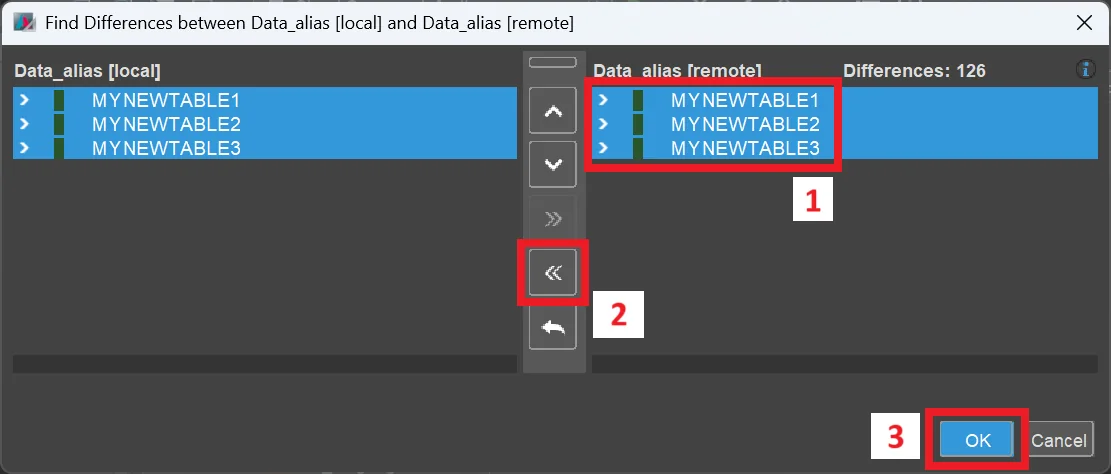
After the update is complete, the new tables and columns are available in the Navigator as part of the Alias Definition.
If you want to create or modify the database structure without Liquibase, you can work in either direction:
- You can start in the database editor (
system > default > Data_alias > ADITO), create tables and columns there, and then update the Alias Definition fromremotetolocal. - Or you can start in the Alias Definition itself. Double-click
alias > Data_alias, create a table from the context menu, add columns, and configure their properties. Afterwards, update the database fromlocaltoremote.
In both cases, generating Liquibase files afterwards can still be useful, for example if the database should later be reset by using Drop all & Update.... See Create Liquibase files automatically in the Designer Manual.