Microsoft Graph Calendar
The Microsoft Graph Calendar backend uses the Microsoft Graph API to read and write calendar events in a Microsoft 365 tenant. Use this backend for new Microsoft 365 calendar integrations.
Reference data model: AliasGraphBackend
Alias Configuration
Currently, the Microsoft Graph Calendar backend supports application access through OAuth2.
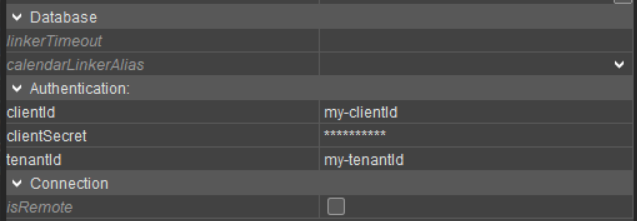 Figure: Microsoft Graph alias configured with OAuth2 application credentials.
| Property | Description |
|---|---|
tenantId | Sets the Microsoft Entra tenant ID. |
clientId | Sets the application client ID. |
clientSecret | Sets the application client secret. |
calendarLinkerAlias | Sets the database alias for the calendar linker. |
linkerTimeout | Sets the query timeout for linker database access. |
The isRemote property is experimental. Do not use it in production unless the
ADITO operator explicitly enables remote calendar management for the system.
Register ADITO in Microsoft Entra ID
Register ADITO as an application in Microsoft Entra ID when ADITO should access Microsoft 365 calendars without a signed-in user. This setup uses the OAuth2 client credentials flow.
Create the App Registration
In the Microsoft Entra admin center:
- Go to Identity > Applications > App registrations.
- Select New registration.
- Enter a name, for example
ADITO Calendar. - Select the supported account type. For most customer systems, use a single-tenant application.
- Leave Redirect URI empty. It is not required for client credentials or background services.
- Select Register.
After registration, copy these values from the app overview:
| Microsoft Entra value | ADITO alias property |
|---|---|
| Application (client) ID | clientId |
| Directory (tenant) ID | tenantId |
Create a Client Secret
In the app registration:
- Go to Certificates & secrets.
- Select Client secrets.
- Select New client secret.
- Enter a description, for example
adito-calendar-prod. - Choose an expiration that matches the organization's secret rotation policy.
- Select Add.
- Copy the generated secret Value immediately.
Use the copied secret value as the clientSecret in the ADITO Microsoft Graph
alias.
The client secret value is shown only once. Store it in the intended secret store immediately and plan rotation before the configured expiration date.
Configure the ADITO Alias
Create a Microsoft Graph alias in ADITO and enter the values from the app registration:
| ADITO alias property | Value |
|---|---|
tenantId | Directory (tenant) ID from Microsoft Entra ID. |
clientId | Application (client) ID from Microsoft Entra ID. |
clientSecret | Client secret value created for the app registration. |
calendarLinkerAlias | Database alias for the calendar linker, usually the ADITO system database alias. |
The token endpoint used by the client credentials flow has this format:
https://login.microsoftonline.com/<tenant-id>/oauth2/v2.0/token
The scope for Microsoft Graph application permissions is:
https://graph.microsoft.com/.default
After configuring the alias, test calendar access in ADITO with a user whose
calendarId points to a mailbox in the Microsoft 365 tenant.
Restrict Mailbox Access
Do not leave an application with tenant-wide mailbox access unless that is intended. For scoped access, use Exchange Online RBAC for Applications.
Create the Exchange Online service principal pointer for the Microsoft Entra application:
Connect-ExchangeOnline

New-ServicePrincipal `
  -AppId "<application-client-id>" `
  -ObjectId "<enterprise-application-object-id>" `
  -DisplayName "ADITO Calendar"
Then assign the required Exchange application role to a resource scope, such as a management scope or administrative unit that contains only the mailboxes ADITO may access.
Older Application Access Policies are still present in many environments, but Microsoft documents Exchange Online RBAC for Applications as the scalable replacement. Prefer RBAC for new scoped-access setups.
Legacy Application Access Policy example:
New-ApplicationAccessPolicy `
  -AppId "<application-client-id>" `
  -PolicyScopeGroupId "calendar-access-group@example.com" `
  -AccessRight RestrictAccess `
  -Description "Restrict ADITO calendar application access"
External references:
- Register an application with Microsoft Entra ID
- Add and manage application credentials in Microsoft Entra ID
- Microsoft Graph client credentials flow
- Exchange Online RBAC for Applications
Microsoft Graph Permissions
The application registration requires Microsoft Graph application permissions.
For read-only access, Calendars.Read is sufficient. For normal ADITO Calendar
usage with create, update, and delete operations, configure Calendars.ReadWrite
as an application permission and grant tenant admin consent.
Recommended setup:
- Open API permissions in the app registration.
- Select Add a permission.
- Select Microsoft Graph.
- Select Application permissions.
- Add
Calendars.ReadWrite, orCalendars.Readfor read-only scenarios. - Select Grant admin consent.
Optional permissions depend on the required access model:
| Permission | Use case |
|---|---|
Calendars.Read | Use this for read-only access to calendar events. |
Calendars.ReadWrite | Use this when ADITO should create, update, and delete calendar events. |
Calendars.ReadWrite.Shared | Use this for delegated user access to shared calendars. |
Calendars.ReadWrite.All | Use this for work-hours or location-related APIs, not for normal event CRUD. |
External references:
- Microsoft Graph permissions reference
- Microsoft Graph calendar resource type
- Application RBAC for Exchange Online
Application permission Calendars.ReadWrite grants broad app-only access by
default. If the app should access only selected mailboxes or calendars, scope
access with Exchange Online RBAC for Applications.
User Configuration
For Microsoft Graph, configure the user's calendarId with the email address
or calendar identifier used by the Microsoft 365 mailbox.
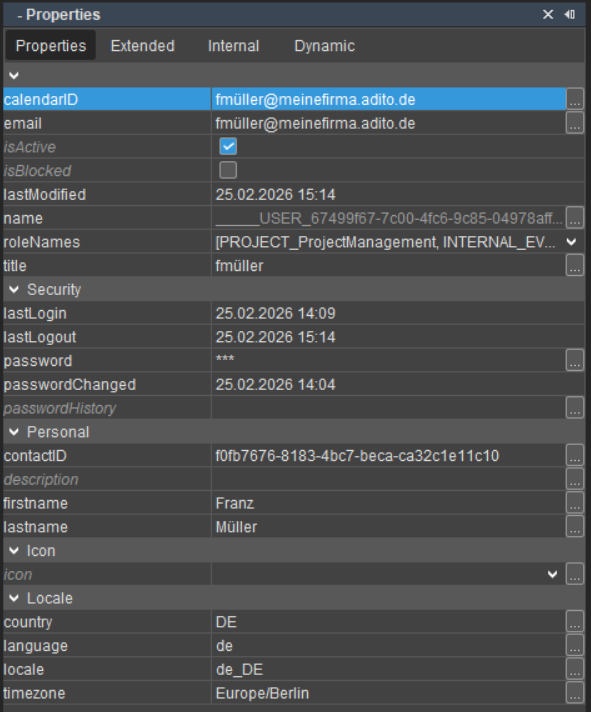 Figure: Calendar ID user property for backend account mapping.
No additional Microsoft Graph-specific user properties are required in the extended user properties for the default application access setup.
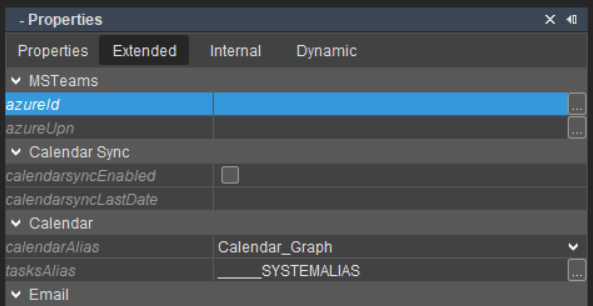 Figure: Extended user properties for a Microsoft Graph calendar backend.
For full Microsoft Graph Calendar support, use appointment module
@aditosoftware/appointment version 4.4.0 or later.