Task
Once you have created the Entities, you can now define their sub-structure, i.e., create their fields (EntityFields). Strictly keep to the concept.
You can find helpful information in the generic part of the documentation, see chapter The Basics.
Solution
In the project tree, double-click on the Entity, in order to display its sub-structure in the Navigator window. There, open the Entity's context menu (RMB), choose "New Field" and create name for the new EntityField, followed by OK. Afterwarts, click on the new EntityField and give it a title, via its property sheet. Then, repeat this also for all other EntityFields.
According to ADITO's spelling guidelines (see document AID001 Coding Guidelines), EntityFields are written in uppercase letters, without underscores in between, while calculated fields are written in lowerCamelCase, e.g., "drivingExperience". This will help you in the future to distinguish these 2 kinds of EntityFields.
Additionaly, you need to set property contentType for some of the fields (instead of setting this property separately for every related EntityField, you can simply first mark all related EntityFields with the CTRL key pressed; then you need to set the property only once, because this will effekt all marked EntityFields):
- NUMBER for
- Car: PRICE, mileage, carValue, damages
- CarDriver: age, drivingExperience, parkingTicketFinesSum, speedingFinesSum (- CarReservation will be handled later)
- DATE (resolution: DAY) for
- Car: MANUFACTUREDATE
- CarDriver: DRIVINGLICENSEISSUEDATE (- CarReservation will be handled later)
- IMAGE for Car: PICTURE
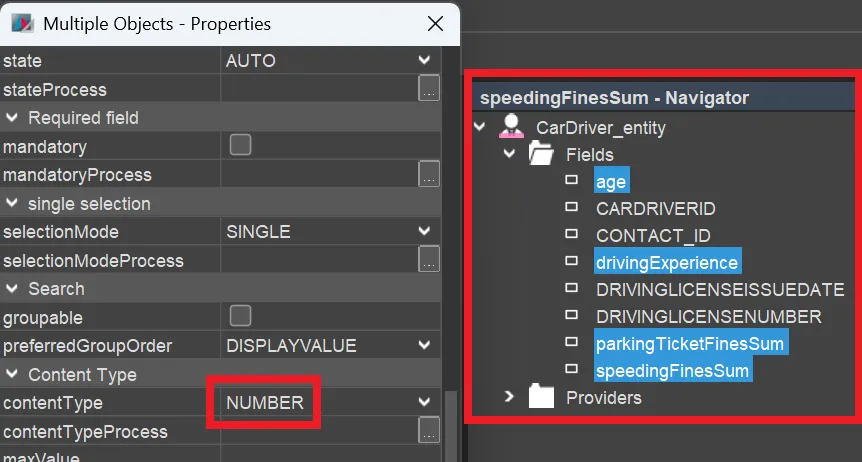
The contentType of all other EntityFields can remain in default state (= TEXT).
The logic of the calculated EntityFields will be added later.
The result may look like this:
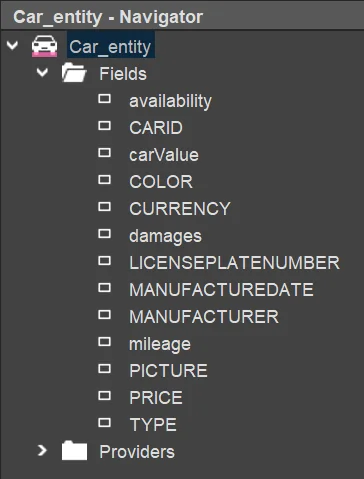
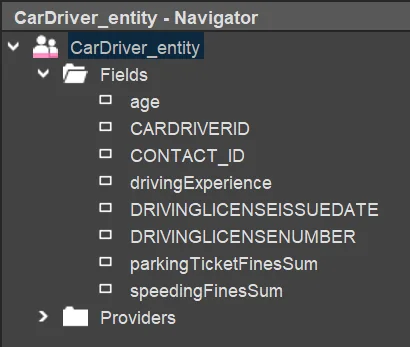
Now, you need to decide on your own what EntityFields are mandatory. Set their property mandatory to true. Then, datasets can only be saved, if all mandatory EntityFields have a value; otherwise, the "Save" button will be disabled, and the message "Required value is missing" will be displayed.
For all EntityFields acting like "foreign keys", you should set property linkedContext accordingly:
- CarDriver_entity.CONTACT_ID: Person
- CarReservation_entity.CAR_ID: Car (wait with this configuration until you have reached chapter Blueprints, where CarReservation_entity is created)
- CarReservation_entity.CARDRIVER_ID: CarDriver (ditto)
The effect of property linkedContext is that, in the client, the respective EntityField values will be displayed with a hyperlink, allowing you to open the Car/CarDriver in the MainView of the configured Context.