Task
Make sure, all keywords referenced by the Entities have been configured in the client. Furthermore, make sure that the keywords can be accessed in the code appropriately.
Solution
Add keywords
Let's start with Keywords refering to car manufacturers.
Extend Context "Keyword Category"
In the client, open Context "Keyword Category" in menu group "Administration". Here, press the "plus" button and enter
- "CarManufacturer" in line "Category Name" and,
- e.g., "The names of car manufacturers" in line "Description".
Then press button "Save and close".
Enter Keywords
Open Context "Keyword Entry" in menu group "Administration". Here, press the "plus" button and enter
- "CarManufacturer" in line "Keyword Category",
- e.g., "CarManufacturer.Toyota" in line "Translationkey". This translation key requirers additionaly that it is also included in all language files (see folder "language", in the project tree), along with the respective language-specific translation:
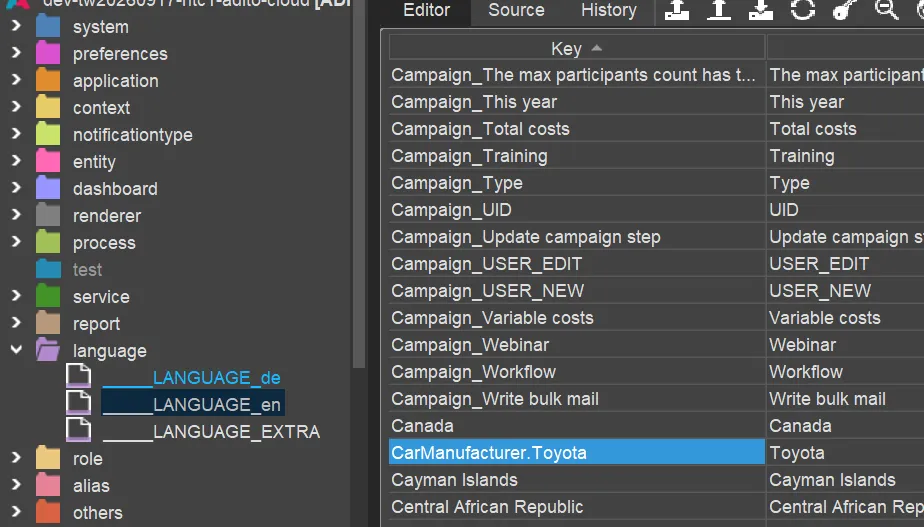
- CARMANUFACTURERTOYOTA in line "Key". This key can have up to 36 digits. It and its references are saved in the database in a column of type VARCHAR(36). This "Key" ist the actual reference criteria being used in the code.
- Line "Description" can be left empty.
Then press button "Save and close".
Make keywords accessible in the code
A keyword is usually accessed via its corresponsing keyword category - "CarManufacturer", in the above case. To be more exact, this keyword category is not used directly, but via a function provided by a library for accessing keywords all over the project:
$CarPoolKeywords.carManufacturer()
Find an example for a call of this function in chapter Field Groups.
A more detailed explanation of how to handle keywords can be found in chapter Keywords, sub-chapter of chapter Dependencies